


When we want to add some additional information to a document or make it confidential, we prefer to watermark it. The opacity of the watermark can be managed according to the wish of the document owner and of course the liability that is given to the reader/viewer.
On one hand where watermarks help in protecting intellect or secrecy of PDF documents, it definitely causes inconvenience to many users as it interrupts smooth reading or viewing the contents. This is when the need of removing watermark arises!
Although, there is Adobe Acrobat for helping to remove the watermark from PDF file but generally, it is not a preferred option for many users due to high cost investment. And to simplify the solution, third party tools for this job are looked out so that maximum benefits with minimum investment can be availed.
Here, we are going to review PDFWARE PDF Watermark Remover program that is promised to eliminate watermarks from Adobe PDF documents. We are going to dig deeper for analyzing real-time performance of the product and check out how much the investment in the tool is valued.
Introductory Information:
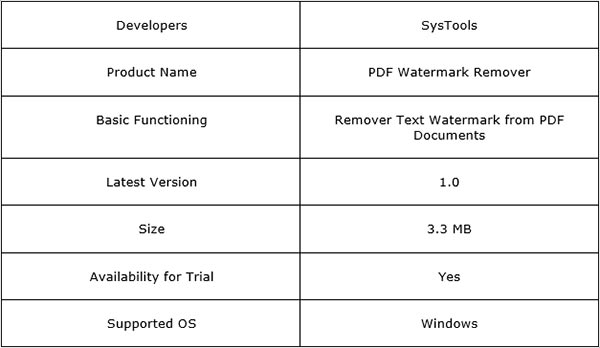
PDF Watermark Remover is a small sized Widows based utility that allows removing text watermark from PDF files. The tool has simple interface and offers option to eliminate watermark from multiple Adobe documents. The tool efficiently works on PDF files that are Adobe Acrobat generated and promises to maintain the quality of data after watermark removal.
Promised Facilities:
Along with the functionality to take off watermark from the PDF file, there are some added attributes in the tool that enhance the quality of results. Let’s have a quick look at them.
1: Batch PDF Watermark Removal
For removing watermark, multiple PDF files can be added to the tool at once. This can be done using “Add File (s)” or “Add Folder” options available in the tool. Also, if needed some of the added files can be removed from processing by selecting the file and using the “Remove” and “Remove File” option.
2: Preserves Quality of Contents
While the software removes watermark from selected PDF files, it preserves the quality of data in the document. The text and image content in the PDF remains unaffected while the software processes its task.
3: Removes Adobe PDF Watermark
PDF files generated using Adobe Acrobat can processed by the tool. Also, watermark removal is supported by the tool for PDF files created with all versions of Adobe Acrobat.
#4: Save PDF into New Folder
When the software successfully removes watermark from PDF file, it saves the watermark-free Adobe document into a new folder at a location of users’ choice. The software functionality can be availed by installing it on any version of Windows OS including Windows 8.1.
Software Working:
Software Download Link: http://www.pdfware.org/pdf-watermark-remover.html
The tool can be downloaded from the above shared link and is absolutely easy to install. The best part is, it is free from any kind of freeware or adware which makes installation a job of few clicks only. Once done with that part, follow the steps mentioned below:
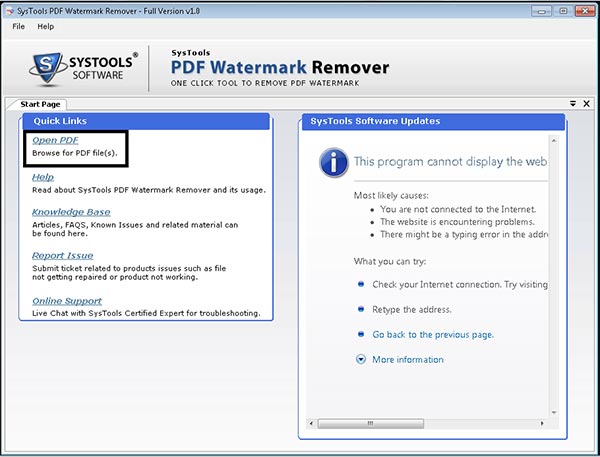
Step #1: On the welcome screen of the tool, click on the “Open PDF” link. This is the initiation step to add PDF files for processing.
Step #2:
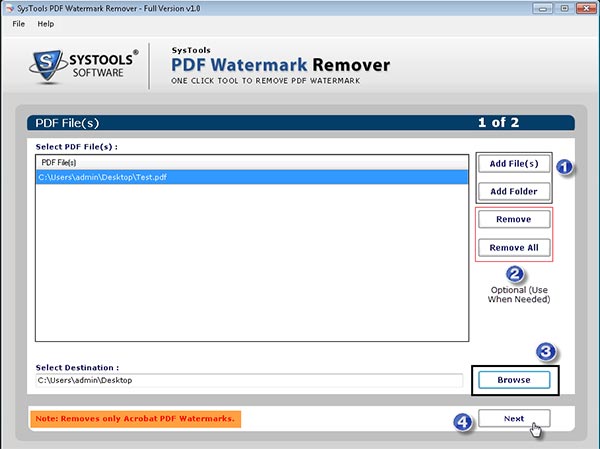
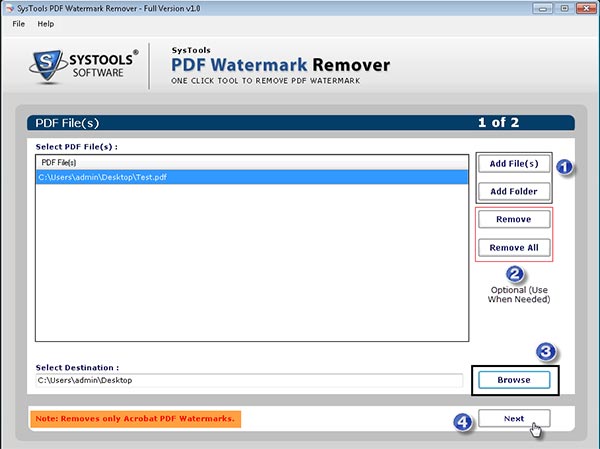
1) Click on “Add Files” button and browse for the PDF file from which watermark has to be removed. When this option is selected, files can be added one after another. However, if there is a folder with all PDF files to be processed, then use the “Add Folder” option in the tool.
2) If any of the added PDF has to be eliminated from watermark removal process, then select the files from left pane and use the “Remove PDF” option. However, if all added files are to be removed, use the “Remove All” option.
3) Click on the “Browse” button to provide a location where output PDF file has to be saved.
4) Click on “Next” button to proceed to next step of software processing.
Step #3: Click on “Start” button to initiate Adobe Acrobat PDF file watermark removal process.
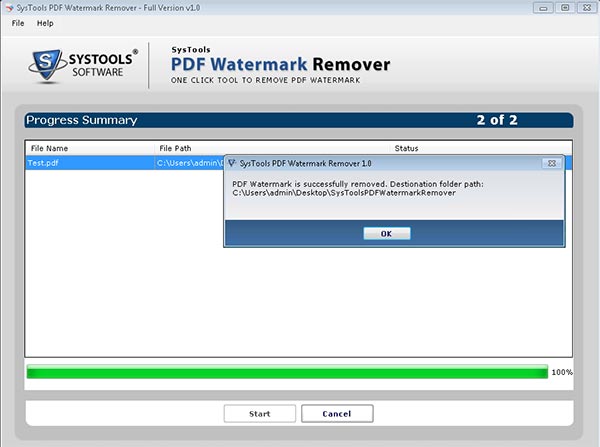
Step #4: When watermark is removed from PDF file, the Status will change to “Complete” and a message will be prompted on screen informing about success of the process.
Cons and Pros:
The software is simple to use and in just few clicks remove watermark from PDF file in few clicks. The contents in the document remain unharmed.
Although the tool works perfectly well as promised, but it could be improved by adding option to remove mage watermark from the document.
Final Words:
PDF Watermark Removal Program offers facility to make the PDF document free from watermark. Its simplicity, flexibility of installation, and performance makes it a tool of investment. Analyzing functionality of the product and its advantages, this product definitely deserves a recommendation of trial and investment.
