


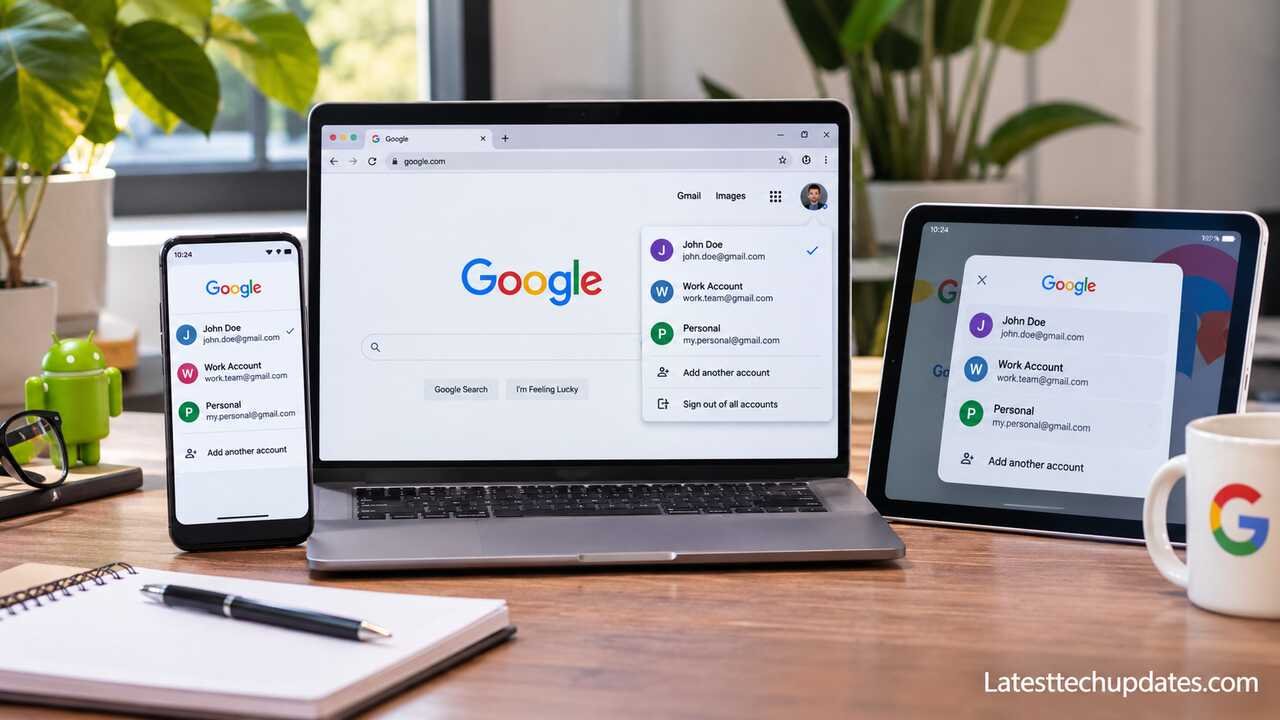
You can sign in to several Google accounts at once and switch between them from your profile picture in Gmail, Drive, and other Google apps. If you regularly open work files with your personal account or send messages from the wrong inbox, create separate Chrome profiles for work and personal use. Google’s guide to signing in to multiple accounts explains how the account switcher works.
How to add and switch Google accounts on a computer
- Open Gmail or Google Drive and sign in.
- Click your profile picture or initial in the top-right corner of the webpage.
- Select Add account and sign in with your other email address.
- Open the same menu and select the email address you want to use.
The profile picture inside Gmail switches your Google account in that service. The profile icon in the Chrome toolbar switches your browser profile. If both icons look similar, check the full email address before you send a message or open a shared file.
How to change your default Google account
On desktop, Google usually treats the first account you sign in to as the default in that browser session. To change it, open the Google account menu, choose Sign out of all accounts, and sign back in with your preferred account first. Then add your other accounts again. Make sure you can complete any verification prompts before signing out. On phones and tablets, account behavior can vary by app and operating system.
If you still open a Drive link with the wrong account, check which email address the owner shared it with. Switch to that address and reopen the link. If you still see Request access, ask the owner to confirm the sharing permissions for that email address.
How to separate work and personal accounts in Chrome
Create one Chrome profile for work and another for personal browsing if you switch between them throughout the day. Each profile can keep its own bookmarks, history, passwords, and settings. Distinct names and colors make it easier to recognize which window you’re using.
- Click the profile icon in Chrome’s toolbar.
- Choose Add Chrome profile.
- Name it Work and choose a recognizable color.
- Open Gmail, Drive, and Calendar in that profile and sign in with your work address.
- Use a separate profile for personal browsing.
Some third-party browsers also offer separate browsing profiles. The GoLogin guide to managing multiple Google accounts describes its approach.
How to manage Gmail, Drive, Calendar, and Meet
| Service | What to check |
|---|---|
| Gmail | Check the active email address before composing a message and confirm the From address before sending if you use multiple sending addresses. Set up labels and filters in the inbox where the mail arrives. |
| Google Drive | Check the active account before uploading a file or requesting access. When sharing, confirm the recipient’s exact email address and whether they need viewer, commenter, or editor access. |
| Google Calendar | Check which calendar is selected before saving an event. Assign different colors to work and personal calendars. When you only need to show availability, use free/busy sharing where available. |
| Google Meet | Check the account shown before joining, especially if a meeting invitation was sent to a specific work or school address. |
If you want one inbox for personal messages, Gmail forwarding can route incoming mail to another address. You’ll need to verify the destination address first. Before forwarding work email to a personal inbox or sharing a work calendar externally, check what your organization allows. Gmail forwarding instructions
How to switch Google accounts on Android or iPhone
Open Gmail, Drive, or another supported Google app and tap your profile picture. Select the account you want to use, or choose Add another account if it hasn’t been added. If you switch to Drive or Calendar afterward, check the address in that app before uploading a file or creating an event.
How to secure each Google account
Turn on 2-Step Verification for each account and review its recovery options. If you’ve used a shared device or see an unfamiliar session, open your Google Account’s Security settings, go to Your devices, and sign out of the relevant session. Repeat this for each account you used on that device.
If you connect an email client or productivity app, review which account you’re authorizing and what data the app can access. For more on permissions and workplace rules, see our guide to using AI productivity tools safely.
