


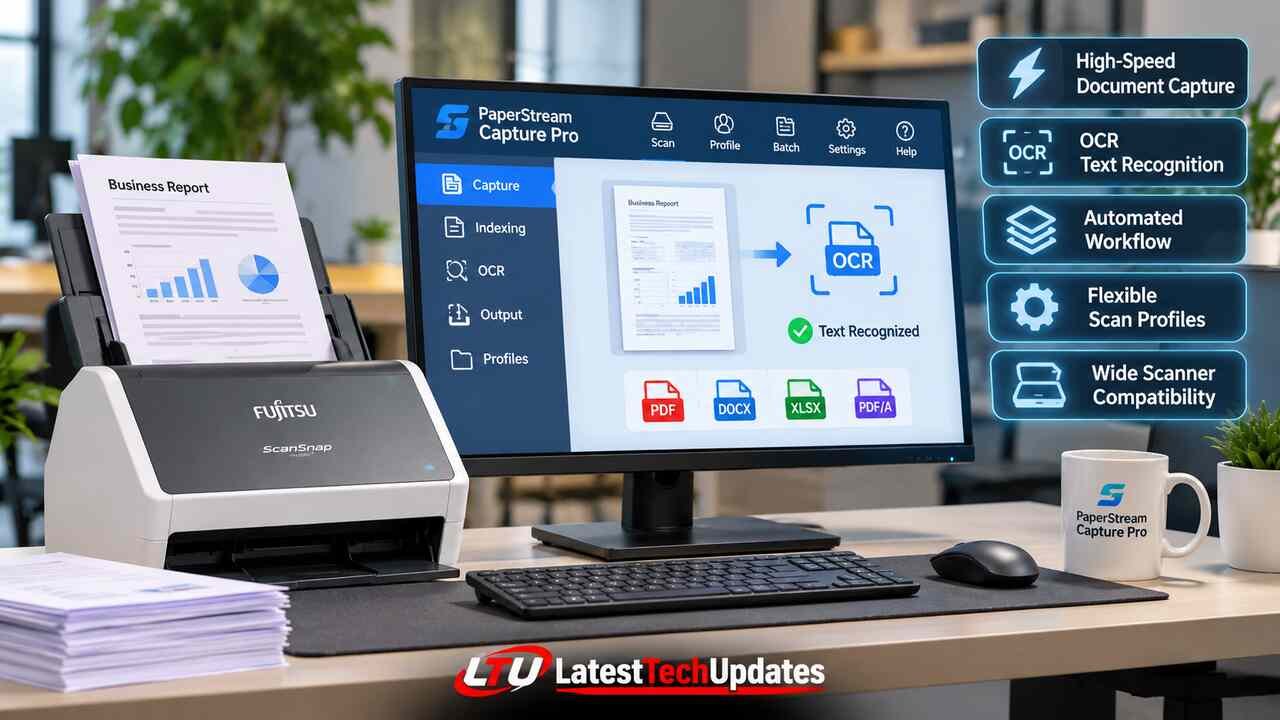
PaperStream Capture Pro is document capture software for teams that regularly scan paper records. It lets you create reusable scan jobs, separate batches into individual documents, extract information from forms, and send the resulting files and data to a configured destination. A finance team, for example, can capture an invoice number during scanning and pass it along with the scanned document for review.
What can PaperStream Capture Pro do?
Improve scan quality and separate batches
A scan job can save the scanner settings, image enhancement profile, separation rules, file naming, and output destination for a recurring task. With compatible hardware and the right configuration, operators can load several documents in one batch and use a barcode, blank page, or page count to tell the software where each document begins. Scanner hardware and the condition of the originals still affect throughput.
Extract text and index fields with OCR
Optical Character Recognition (OCR) reads text from scanned images. Full-text OCR makes document text searchable, while zonal OCR reads a defined area of a page, such as the account number box on a standard form. Captured values can serve as index fields so staff can retrieve records using information such as an invoice number or customer ID. Faint print and changing layouts can affect recognition, so include a review step for fields your team relies on.
Export documents and data to downstream systems
PaperStream Capture Pro can release scanned documents and extracted data for use in another system. PFU documents options including XML output, release APIs, and configurable connectors. Start by checking which file formats and fields your destination system accepts. Then run a sample batch through the whole workflow to confirm that the receiving system gets each document with the right metadata.
What does a PaperStream Capture Pro workflow look like?
Consider a team that scans a stack of purchase orders printed on the same form. The team can set up a scan job that separates the batch, reads the purchase order number from a defined area, and captures it as an index field. An operator can review unclear values before releasing the files to the records system.
The biggest time savings come when a task repeats often enough to justify the setup. If you’re evaluating where automation can enhance productivity, compare the time it takes to scan, name, index, and correct a representative batch under both workflows. Include exceptions such as faint copies and missing form fields in the test.
PaperStream Capture Pro vs. Pro Premium
Both editions support fixed-form capture, barcode recognition, and batch separation. Pro Premium adds file import, including an Outlook attachment workflow, and support for additional Ricoh production scanners. For documents with varying layouts, such as invoices from different suppliers, PFU identifies PaperStream AI as the option for semi-structured and unstructured extraction.
| If your team needs to… | What to check |
|---|---|
| Scan and index recurring paper forms | Start with Pro and verify your scanner model. |
| Import existing files or process Outlook attachments | Evaluate Pro Premium. |
| Use a Ricoh production scanner | Check PFU’s compatibility list for the exact model and edition. |
| Extract fields from forms with varying layouts | Evaluate PaperStream AI with samples from each common layout. |
Which scanners work with PaperStream Capture Pro?
PFU lists supported Ricoh fi and SP Series models by edition. It also documents support for third-party scanners using TWAIN 2.3 or newer, with possible limitations depending on the driver. If you already own the scanner, use the trial to test the functions you need, including paper size, double-sided scanning, and image quality.
If oversized originals are part of your workflow, check that the 11×17 flatbed scanner you’re considering supports that size on the scan surface you plan to use. When comparing flatbed scanners for fragile or bound materials, check the flatbed dimensions separately from the feeder’s specifications. Verify the exact scanner model against the software edition before purchasing.
How should you handle sensitive records after scanning?
Decide where the files will live, who can access them, and how long they should be kept. When reviewing how to secure your business from cyber threats, include the folders where staff review scans and the system where the final records are stored. For sensitive documents, test who can view, edit, export, or delete a sample record at each step in the workflow.
Before committing to either edition, run one real batch from scanning through retrieval. Check page order, index accuracy, review time, and whether a colleague can find the finished record in the destination system. That test gives you a practical basis for deciding whether the software fits your document workflow.
