
Highlights
- Comprehensive guidance for choosing the best printer for Mac devices
- Detailed breakdown of wireless connectivity, print quality, compatibility, and software integration
- Step-by-step explanations for evaluating print speed, paper handling, and long term cost
- Expert recommendations based on hands-on experience using Mac printers in professional settings
- Practical comparisons to help users pick models for home, office, photo work, or creative studios
- Troubleshooting insights to maintain smooth operation with macOS
- Clear answers to commonly asked questions at the end
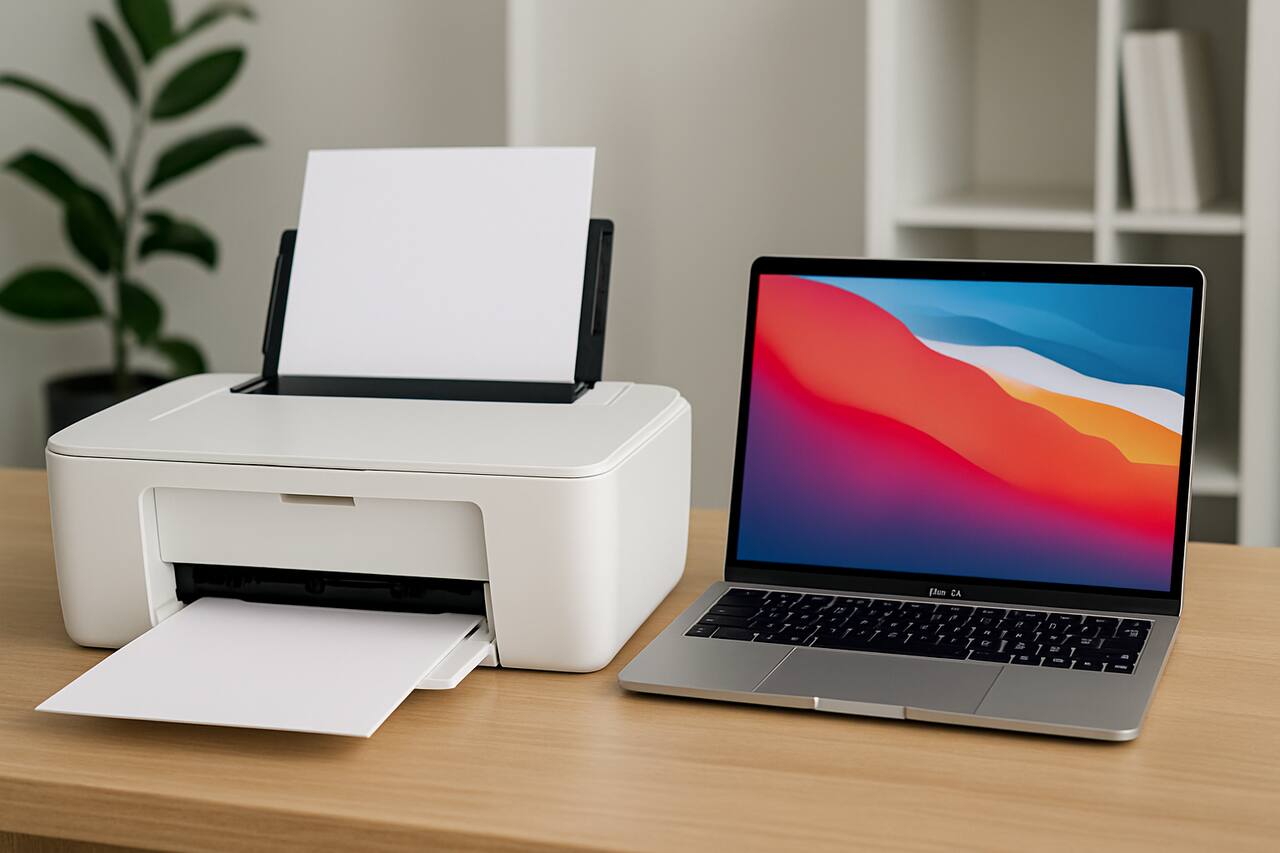
Choosing the best printer for Mac can be challenging, especially as macOS has unique compatibility requirements that not every printer can meet. Throughout my career working with digital workstations, creative studios, and remote teams, I’ve had extensive hands-on experience testing printers across different Mac setups. That experience taught me how important it is to prioritize ease of setup, dependable drivers, high quality output, and smooth integration with Apple’s software. This guide provides an in-depth breakdown of what you should look for so you can find the most reliable and efficient printer for your Mac environment.
Evaluate macOS Compatibility Before Choosing a Printer
Selecting a printer that works flawlessly with macOS is the first step toward a smooth and frustration free experience. A Mac compatible printer must support seamless setup, automatic detection, and stable driver performance. Many high end printers offer native support for Apple systems, but not all models guarantee reliability or ongoing updates.
Understanding the type of compatibility a printer provides is essential. Some printers rely on built in macOS drivers, while others require downloading additional software. macOS updates can occasionally cause older printers to malfunction, so choosing a model with ongoing support ensures long term usability. Compatibility also includes access to features like duplex printing, detailed color profiles, and maintenance tools within the Mac interface.
Beyond driver support, a compatible printer should integrate smoothly with macOS apps like Preview, Photos, and productivity software. Creative professionals may need advanced color tools, while home users might rely on simplified presets. Each of these functions depends on strong compatibility across the entire printing workflow.
Check Built In AirPrint Support
AirPrint support allows your Mac to print without installing drivers. This makes setup quick and allows all core features to work automatically. AirPrint printers also tend to offer reliable wireless connectivity, making them ideal for homes and offices.
Review Software Updates for macOS Versions
Regular firmware and software updates keep your printer running smoothly as macOS evolves. Manufacturers that release consistent updates ensure your printer remains functional with new Mac releases, avoiding compatibility problems that often arise with outdated models.
Compare Print Quality for Home, Office, and Creative Use
Print quality determines how sharp and accurate your documents and images appear. When choosing the best printer for Mac, evaluating the output type you need is an essential step. Office users may prioritize crisp text, while photographers and designers need precise colors and smooth gradients.
Different print engines produce different results. Laser printers deliver exceptional text sharpness and fast output, making them ideal for professional documents. Inkjet printers excel at producing vibrant color prints and high resolution photos. Understanding these differences allows you to match your printer to your workload.
Color accuracy is especially important for Mac users who work with design tools like Final Cut Pro, Illustrator, and Photoshop. These applications rely on accurate color profiles, so choosing a printer that supports advanced calibration can make a significant difference in the final output.
Assess Color Accuracy for Creative Projects
Creative professionals must evaluate how well a printer reproduces hues, highlights, and shadows. Printers with specialized color cartridges can produce more accurate tones, ensuring digital designs appear the same on paper.
Compare DPI Specifications for Sharper Output
DPI affects how detailed your prints look. Higher DPI is essential for photos, complex graphics, and marketing materials. Understanding this specification helps you choose a printer that meets your clarity expectations.
Choose the Right Connectivity Options for macOS Integration
Mac users rely heavily on wireless technology for convenience and workflow efficiency. A printer with strong connectivity options ensures consistent performance and easy access from multiple Apple devices, including Mac, iPhone, and iPad.
Wireless printing eliminates the need for cables and reduces setup time. It also allows multiple users to access the printer, making it suitable for shared environments. Some printers support direct printing from cloud services, which is helpful for remote or hybrid workspaces.
In addition to wireless connectivity, some users may still prefer a wired option for stability. USB and Ethernet connections can provide faster, more reliable transfer speeds during large print jobs, especially in busy offices where multiple documents are processed simultaneously.
Use Wi-Fi Printing for Seamless Mac Integration
Wi-Fi printing allows your Mac to connect instantly, supporting AirPrint and other Mac specific features. A stable Wi-Fi connection improves efficiency and reduces the chance of interruptions during printing.
Consider USB or Ethernet for Stable Office Workflows
Wired connections remain valuable in professional environments. They provide uninterrupted printing even when networks are busy, ensuring large documents and continuous print tasks remain consistent.
Analyze Print Speed and Performance for Your Workflow
Print speed determines how quickly your printer can complete tasks. Mac users handling large volumes of documents, reports, or design proofs need a printer optimized for speed and consistent output. Slow printing can interrupt productivity and delay deadlines.
Different printers offer different performance levels. Laser printers typically provide faster print speeds for text documents, making them ideal for busy workplaces. Inkjet models may print slower but offer superior color depth and clarity. Deciding on speed depends on your daily usage, the types of documents you print, and how time sensitive your tasks are.
Performance also relates to how well a printer handles multitasking. Some printers manage multiple print jobs efficiently, while others may slow down under heavy workloads. Evaluating your workflow helps determine the level of performance you require.
Compare Pages Per Minute Ratings
PPM ratings reveal the speed of both black and color printing. A higher rating ensures faster production, which is essential for businesses and individuals working under busy schedules.
Review First Page Output Time
The time it takes for a printer to produce the first page affects overall efficiency. A faster first page time is beneficial during time critical tasks and prevents workflow bottlenecks.
Assess Paper Handling and Versatility for Different Tasks
Paper handling is a key factor when choosing the best printer for Mac, especially when printing a variety of documents like brochures, presentations, contracts, and photography prints. A printer with flexible paper support allows you to manage diverse projects with ease.
Tray capacity determines how often you must refill paper. Offices may need high capacity trays to handle heavy loads, while home users may only require smaller trays. Specialty media support is also important for users printing labels, envelopes, or glossy photo paper.
Multifunction printers expand your capabilities with scanning and copying. Mac compatible scanning tools allow you to save files directly into macOS folders or apps, making document management simpler and faster.
Review Tray Capacity for Larger Workloads
High capacity trays reduce interruptions during printing. This is especially valuable for offices handling continuous document flow.
Confirm Support for Photo Paper and Specialty Media
Printers with support for glossy, matte, or heavy stock paper can handle creative and marketing projects without sacrificing quality.
Evaluate Software Features and App Integration for Mac Users
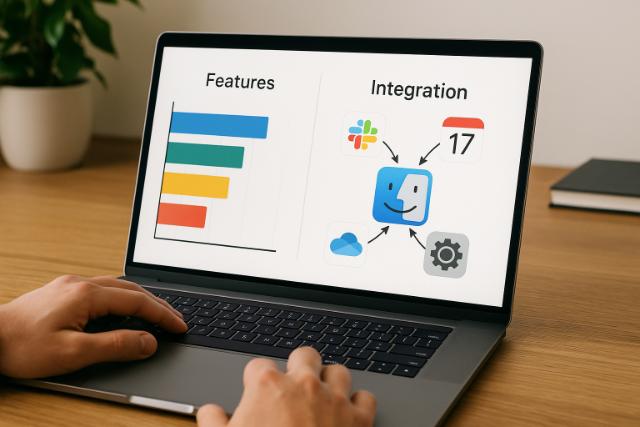
Software features greatly enhance the usability of your printer. Mac users depend on intuitive tools that integrate smoothly with macOS functions. Good software simplifies settings, improves color management, and accelerates workflow.
Many printers include companion apps that allow for wireless management, ink monitoring, and remote printing. These tools make it easier to handle tasks without physically accessing the printer. Integration with Apple apps like Preview and Photos ensures consistent performance across platforms.
Automation tools can further improve the experience. Features like job presets, maintenance alerts, and cloud scanning help streamline workflows, making printing more efficient in both home and office settings.
Use Companion Apps to Optimize Print Workflow
Apps allow you to manage print settings from your Mac or mobile device. They can simplify tasks like double sided printing, ink level checks, and job scheduling.
Explore Cloud Integration for Remote Access
Cloud connected printers allow users to print from anywhere. This is ideal for remote workers, students, and professionals handling collaborative projects.
Compare Long Term Costs and Maintenance Requirements
The cost of owning a printer extends beyond the initial purchase. Mac users should evaluate ink or toner expenses, maintenance needs, and long term reliability. Understanding these factors helps avoid unexpected costs.
Inkjet printers often have lower upfront prices but may require frequent cartridge replacements. Laser printers cost more initially but offer lower cost per page for text printing. Evaluating your print volume helps determine which option is more cost effective.
Maintenance plays a role in long term performance. Printers with self cleaning systems remain efficient over time, while models requiring manual maintenance may demand more attention. Considering service life ensures you invest in a durable machine.
Compare Cost Per Page for Ink and Toner
Cost per page determines how much you spend on each print. Lower costs benefit high volume users and businesses with continuous printing needs.
Review Printer Longevity and Maintenance Features
Printers with durable components and automated cleaning functions offer longer service life and fewer interruptions.
Inkjet vs Laser Printers for Mac
| Feature | Inkjet Printer | Laser Printer |
| Best For | Photos and color documents | Text heavy documents and office work |
| Initial Cost | Lower | Higher |
| Operating Cost | Higher over time | Lower for text |
| Print Speed | Moderate | Fast |
| Color Accuracy | Excellent | Good |
| Maintenance | Frequent cartridge changes | Minimal |
Key Factors When Selecting a Mac Printer
| Selection Criteria | What to Evaluate |
| Compatibility | AirPrint support, driver updates |
| Output Quality | DPI, color accuracy, text clarity |
| Connectivity | Wi-Fi, USB, Ethernet |
| Performance | PPM, first page speed |
| Paper Handling | Tray capacity, media types |
| Cost | Ink or toner price, long term expenses |
Conclusion
Finding the best printer for Mac requires evaluating compatibility, print quality, connectivity, speed, and ongoing cost. Understanding how each of these factors influences your daily workflow helps ensure you select a machine that delivers reliable and high quality results. Whether you use your Mac for professional design, business administration, academic work, or personal projects, the right printer will enhance productivity and make printing smooth and efficient. With careful consideration of performance and usability, you can confidently choose a printer that integrates perfectly with macOS and supports all your printing needs.
FAQ’s
What is the best type of printer for Mac users?
Both inkjet and laser printers work well with Mac, but inkjets are best for photos while lasers excel at text and office documents.
Do all printers work with macOS?
No. Some older or budget models may not support macOS features. Always check for AirPrint support or manufacturer drivers.
Is AirPrint necessary for Mac printing?
AirPrint is not required but makes printing much easier by eliminating driver installation and ensuring smooth connectivity.
Which printer is best for photo printing on Mac?
High resolution inkjet printers with specialized color cartridges produce the best photo results.
Can I connect a Mac to a printer with USB?
Yes. Most Mac compatible printers offer USB in addition to wireless options for stable and fast printing.
Is laser printing cheaper than inkjet?
Laser printers typically have a lower cost per page for text documents, making them more economical for high volume printing.
