


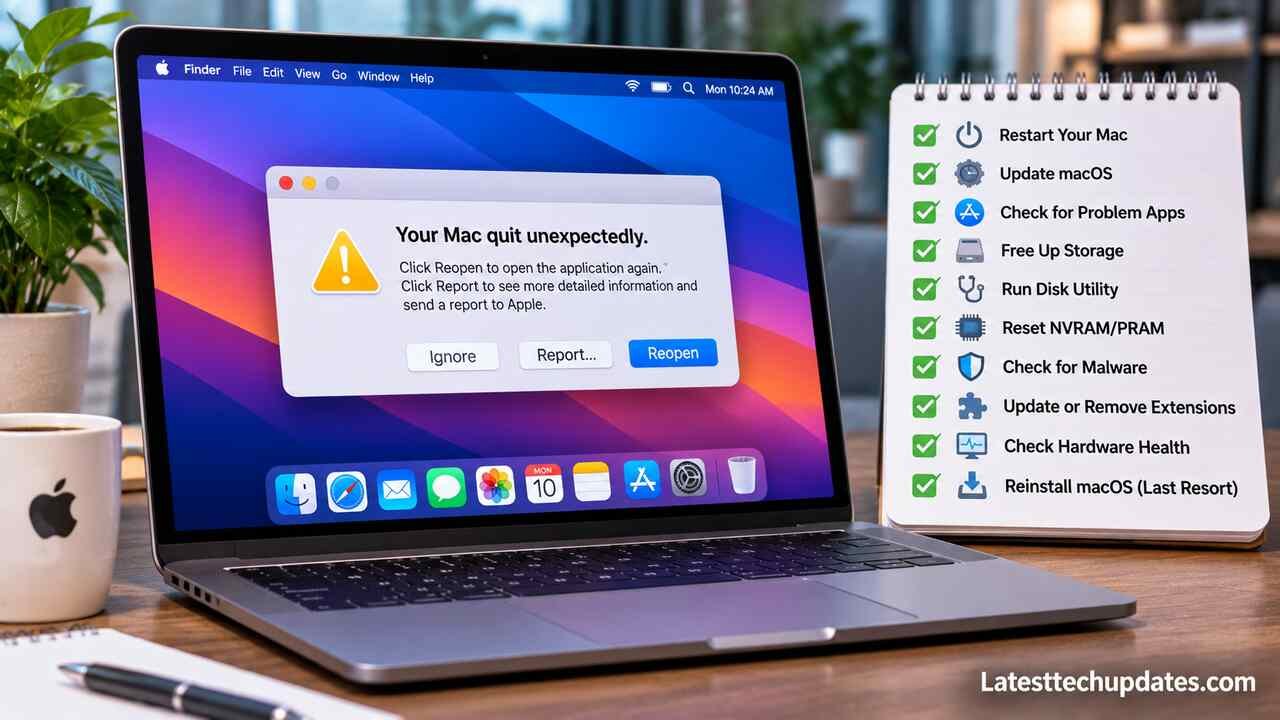
If your Mac keeps crashing, freezing or restarting unexpectedly, the problem could be related to incompatible applications, outdated macOS software, insufficient storage, overheating or hardware faults. Start by updating macOS, checking available storage and closing unresponsive applications. If the problem continues, use Safe Mode, Apple Diagnostics or Disk Utility to identify the underlying cause.
The following troubleshooting methods can help restore your Mac’s stability without immediately resorting to a factory reset.
Why Does Your Mac Keep Crashing?
Repeated Mac crashes generally occur when software or hardware prevents macOS from operating correctly. An unexpected restart accompanied by a message stating that your computer restarted because of a problem may indicate a kernel panic.
Common causes of Mac crashes include:
-
Incompatible or outdated applications
-
macOS software bugs
-
Insufficient available storage
-
High memory pressure
-
Excessive processor usage
-
Incompatible external devices
-
Overheating and inadequate ventilation
-
Corrupted file systems
-
Hardware failures
Identifying when your Mac crashes can make troubleshooting considerably easier.
| Crash symptoms | Possible cause |
|---|---|
| Mac crashes when opening an application | Software incompatibility |
| Mac freezes during demanding tasks | Memory pressure |
| Mac restarts unexpectedly | Kernel panic or hardware issue |
| Mac crashes after connecting a device | Peripheral incompatibility |
| Mac becomes excessively hot | Processor usage or cooling problems |
| Mac crashes during startup | Startup software or disk errors |
1. Update Your macOS and Applications
Installing available software updates is one of the first steps you should take to fix Mac crashing. Software updates often address known bugs, application compatibility issues and security vulnerabilities.
Follow these steps to update macOS:
-
Open the Apple menu.
-
Select System Settings.
-
Click General.
-
Select Software Update.
-
Install available compatible updates.
You should also update applications through the App Store or their official developers. An outdated application may become unstable following a macOS upgrade.
Regular software updates also help address certain cybersecurity vulnerabilities that could compromise your computer’s security.
Back up important files before installing major operating system updates.
2. Delete Unnecessary Files and Free Up Storage
Insufficient storage can interfere with software installation, temporary file creation and virtual memory operations. Although deleting files cannot resolve every type of crash, maintaining sufficient available storage supports normal system performance.
Open System Settings > General > Storage to identify which files and applications occupy the most space.
Consider removing unused applications, outdated installers, duplicate files and unnecessary downloads. High-resolution media files can also consume considerable storage. Learning how to download YouTube videos safely and selecting appropriate video resolutions can help you manage media storage more effectively.
Storage capacity, processor performance and available memory are important considerations when comparing high-performance gaming laptops and other computers designed for demanding workloads.
Apple also provides detailed instructions for freeing up storage space on Mac without unnecessarily deleting essential system files.
3. Force Quit Unresponsive Applications
If your Mac freezes while running a particular application, force-quitting that application may restore normal operation without restarting the entire computer.
To force quit an application:
-
Press Command + Option + Esc.
-
Select the unresponsive application.
-
Click Force Quit.
-
Reopen the application after a short interval.
If the same application repeatedly crashes, check for updates, remove incompatible extensions or reinstall it using the developer’s official installation files.
Remember that force-quitting an application may result in the loss of unsaved work.
4. Check CPU and Memory Usage
Activity Monitor helps identify applications and background processes consuming excessive system resources.
Open Finder, navigate to Applications > Utilities and launch Activity Monitor.
The CPU tab displays processor activity, while the Memory tab helps you evaluate memory pressure and application usage.
| Memory pressure indicator | Meaning |
|---|---|
| Green | Memory resources are being managed effectively. |
| Yellow | Available memory is under increased pressure. |
| Red | Memory resources are heavily constrained. |
Close unnecessary applications, browser tabs and background processes when memory pressure remains consistently high.
Avoid terminating unfamiliar system processes because doing so could introduce additional stability problems.
5. Disconnect External Devices
An incompatible peripheral, faulty USB hub or damaged external storage device can contribute to unexpected Mac restarts.
Shut down your Mac and disconnect unnecessary accessories, including external drives, printers, docking stations and USB hubs. Restart the computer and check whether the crashes continue.
If the problem disappears, reconnect your accessories individually. This process can help identify the device responsible for the instability.
Check the manufacturer’s website for compatible drivers or firmware updates before reconnecting a problematic accessory.
6. Restart Your Mac in Safe Mode
Safe Mode helps determine whether startup software, extensions or other background processes are contributing to Mac crashes.
The startup procedure depends on whether your computer uses Apple silicon or an Intel processor.
For Macs With Apple Silicon
-
Shut down your Mac.
-
Hold the power button until startup options appear.
-
Select your startup volume.
-
Hold the Shift key.
-
Select Continue in Safe Mode.
For Intel-Based Macs
-
Restart or turn on your Mac.
-
Immediately press and hold the Shift key.
-
Release the key when the login screen appears.
-
Sign in to your account.
If your Mac operates normally in Safe Mode but crashes during regular startup, investigate recently installed software, login items and third-party extensions.
You can also follow Apple’s official guide to starting your Mac in Safe Mode.
7. Run Apple Diagnostics
Apple Diagnostics can help identify certain internal hardware problems that may contribute to repeated Mac crashes.
Before running the test, shut down your Mac and disconnect unnecessary external accessories.
Run Apple Diagnostics on Apple Silicon Macs
-
Hold the power button until startup options appear.
-
Release the power button.
-
Press and hold Command + D.
-
Follow the onscreen diagnostic instructions.
Run Apple Diagnostics on Intel-Based Macs
-
Turn on your Mac.
-
Immediately press and hold the D key.
-
Release the key when the diagnostic screen appears.
-
Follow the instructions.
If the test reports a reference code, record it before contacting Apple Support or an authorized repair provider.
Apple Diagnostics cannot identify every software or hardware fault. A successful test does not necessarily mean your Mac is free from problems.
For additional guidance, consult the official instructions for using Apple Diagnostics to test your Mac.
8. Repair Your Startup Disk Using Disk Utility
File system errors can cause application crashes, corrupted files and startup failures. Disk Utility includes a built-in repair feature that checks storage devices for certain errors.
To check your startup disk, enter macOS Recovery.
For Apple silicon: Shut down your Mac, hold the power button until startup options appear, then select Options and Continue.
For Intel-based Macs: Restart your computer while holding Command + R.
Once macOS Recovery opens:
-
Select Disk Utility.
-
Choose View > Show All Devices.
-
Select the last volume on your startup storage device.
-
Run First Aid.
-
Repeat the process for the remaining volumes, containers and finally the storage device.
-
Restart your Mac if the repair completes successfully.
Back up your files before performing disk repairs whenever possible.
Using cloud storage to protect important files can provide an additional layer of protection against data loss. However, cloud synchronization should not replace a complete system backup.
If Disk Utility indicates that your storage device is failing, seek professional assistance rather than repeatedly attempting repairs.
9. Prevent Your Mac From Overheating
Excessive heat can contribute to performance limitations and system instability. However, a warm Mac does not automatically indicate a hardware problem, particularly during demanding workloads.
Although exposure to direct sunlight may have benefits for people, leaving electronic devices exposed to excessive heat is not advisable.
To help manage your Mac’s operating temperature:
-
Place your MacBook on a hard, flat surface.
-
Avoid using it on pillows, blankets or bedding.
-
Keep ventilation openings unobstructed.
-
Close unnecessary resource-intensive applications.
-
Keep macOS and installed applications updated.
-
Avoid leaving your Mac in a hot vehicle.
Apple recommends using Mac laptops at ambient temperatures between 50°F and 95°F (10°C and 35°C).
Some MacBook Air models feature fanless designs, meaning that fan-cleaning advice does not apply to every Mac. If your computer regularly overheats during light usage, consult a qualified technician.
For more information, review Apple’s recommendations for maintaining acceptable Mac operating temperatures.
10. Reinstall or Downgrade macOS
If your Mac continues crashing after basic troubleshooting, reinstalling macOS may resolve damaged operating system components.
Before proceeding, create a complete backup using Time Machine or another reliable backup method.
Start your computer in macOS Recovery, select Reinstall macOS and follow the onscreen instructions.
A standard macOS reinstallation generally preserves personal files and applications. Nevertheless, maintaining a current backup is strongly recommended.
Should You Downgrade macOS?
Downgrading macOS may be worth considering when crashes begin immediately after a major operating system upgrade and essential applications are incompatible with the new version.
However, downgrading is different from reinstalling macOS. It may require a compatible older installer, erasing the startup disk and restoring personal files.
Not every Mac supports older macOS versions, and backups created on newer operating systems may have compatibility limitations.
Try installing available software patches and updating incompatible applications before attempting a downgrade.
When Should You Take Your Mac for Repair?
Professional repair may be necessary when software troubleshooting fails to resolve repeated crashes.
Contact Apple Support or an authorized service provider if your Mac:
-
Continues restarting in Safe Mode.
-
Displays hardware diagnostic error codes.
-
Cannot start macOS Recovery.
-
Frequently shuts down during light usage.
-
Shows signs of storage device failure.
-
Continues crashing after reinstalling macOS.
-
Has suffered physical or liquid damage.
Before arranging a repair, back up important documents and record any error messages or diagnostic reference codes.
How to Prevent Future Mac Crashes
Regular software maintenance and sensible storage management can reduce some avoidable stability problems.
Keep your operating system current, install applications from trusted sources, remove unnecessary startup items and maintain regular backups. Pay attention to changes in system behavior after installing new software or connecting unfamiliar hardware.
For professionals and businesses using Mac computers, implementing reliable cybersecurity and data protection practices can help protect important information and reduce disruptions associated with security incidents.
If crashes become more frequent, investigate the underlying cause rather than relying on repeated forced restarts.
Conclusion
When your Mac keeps crashing, begin with the least disruptive solutions: update macOS, check storage, close problematic applications and disconnect external accessories. If those steps fail, Safe Mode, Apple Diagnostics and Disk Utility can help narrow down the cause.
Reinstalling macOS or seeking professional repair should generally come after basic troubleshooting. Most importantly, maintain a recent backup to protect your personal information before making significant system changes.
FAQ’s
Why does my Mac keep crashing and restarting?
Unexpected restarts can result from incompatible software, kernel panics, faulty external devices, disk errors or internal hardware problems.
Can low storage cause my Mac to freeze?
Yes. Extremely limited available storage can interfere with temporary files, updates and virtual memory operations, potentially contributing to performance and stability problems.
How do I check Mac crash reports?
Open the Console application through Applications > Utilities and review the available crash reports. These reports can provide useful information for software developers and repair technicians.
Does reinstalling macOS delete everything?
A standard macOS reinstallation generally preserves personal files and applications. However, erasing the startup disk before reinstalling macOS will remove its contents. Always create a backup first.
Can overheating cause a Mac to shut down?
Excessive temperatures can trigger protective measures, including reduced performance or shutdowns. Persistent overheating during ordinary usage should be investigated.
Why does my Mac keep crashing after an update?
Application incompatibility, outdated extensions or software bugs may cause issues after a macOS update. Install available patches, update applications and test your computer in Safe Mode.
