
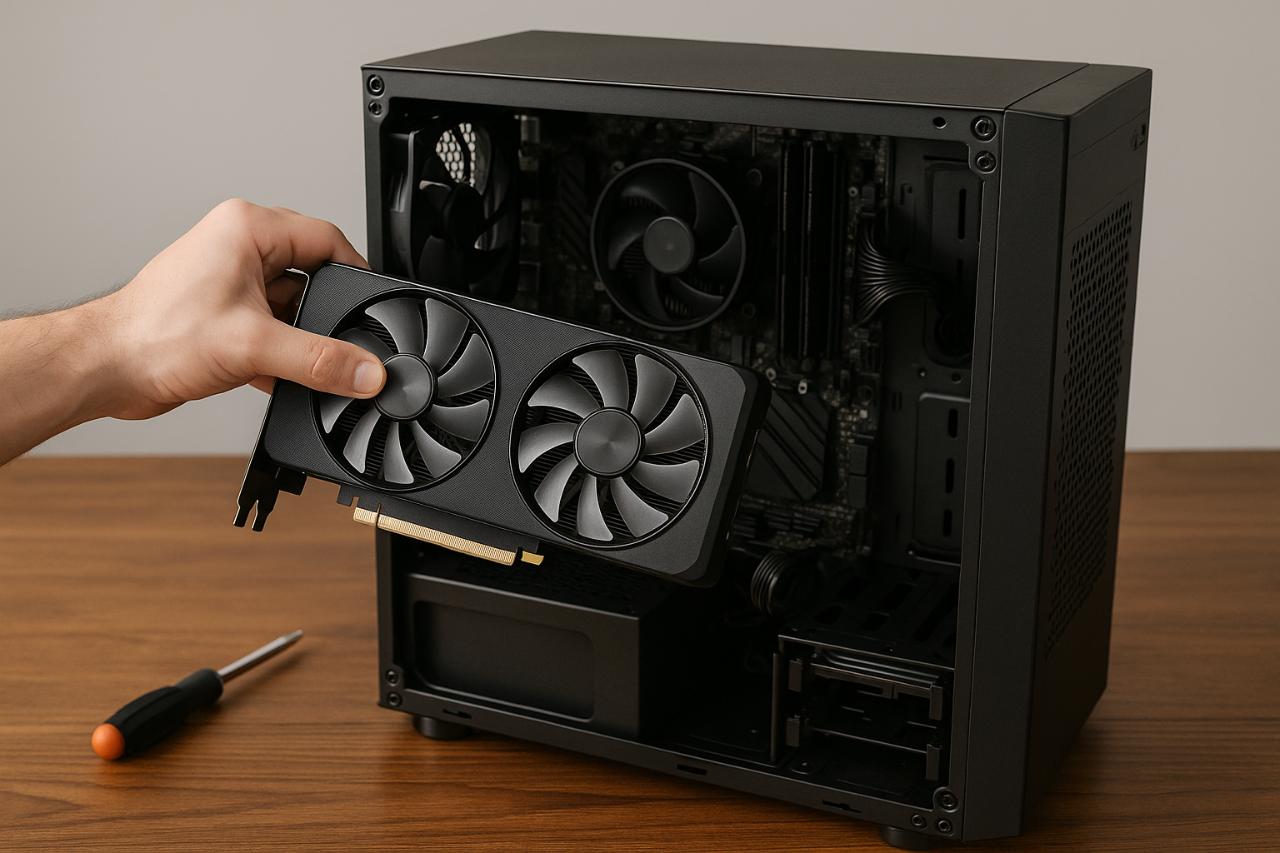
Refreshing a graphics card involves a combination of updating drivers, optimizing software, clearing outdated configurations, improving hardware conditions, and restoring peak system stability. Many users experience slow gaming performance, display issues, or visual glitches because the graphics card is running outdated files or not receiving proper system support. By following structured steps, you can restore smooth visuals, reduce system errors, and ensure your computer delivers reliable graphics performance for demanding tasks.
Refreshing a graphics card is not limited to updating drivers. It includes preparing your operating system, cleaning old data, adjusting system settings, reinstalling core components, and ensuring that all graphical processes work correctly. This guide explains each step in a clear and practical manner to help you stabilize performance and prolong the lifespan of your graphics card.
Prepare Your System Before Refreshing the Graphics Card
Before making any changes to your graphics configuration, you must prepare your computer to ensure the refresh process goes smoothly. Proper preparation helps avoid crashes and prevents conflicts between old and new components. This initial action ensures that each step that follows yields the best possible results.
Preparing your system also involves checking available storage, verifying system health, and closing unnecessary programs that interfere with the refresh process. Many performance issues come from running outdated background tasks or insufficient space that prevents new driver files from installing correctly. Completing this preparation step eliminates obstacles and prevents complications during updates.
This is also the ideal stage to determine whether any recent system changes may affect your graphics performance. Reviewing changes like new software installations, operating system updates, or power settings adjustments can reveal hidden causes of visual problems. Eliminating these issues early ensures your graphics card refresh is effective and long-lasting.
Check System Health Status
Monitoring system health helps identify potential risks before refreshing your graphics card. Look for outdated files, background services that may cause conflicts, and low available storage that could affect new driver installations. A clean and stable system ensures that your graphics card refresh will apply correctly.
Close Performance-Heavy Background Apps
Before refreshing your graphics card, close programs like web browsers, editing software, and games to free system resources. This prevents interference during the refresh process and allows your system to complete updates without delays or unexpected freezes.
Remove Old Graphics Drivers Completely
Removing outdated or corrupted graphics drivers ensures your new configuration installs smoothly. Old drivers often cause conflicts that lead to lag, stuttering, crashes, or inconsistent frame rates. By fully removing previous versions, you create a clean environment for new installations and reduce the chance of system errors.
Uninstalling old drivers also eliminates files that can slow system responsiveness. When graphics drivers update repeatedly over time, leftover components can clutter your system. Clearing these files boosts system efficiency and ensures the refreshed graphics card performs at its highest capacity.
Once old drivers are removed, your system is ready to accept the latest version without the risk of compatibility issues. This step is essential because a clean installation often solves problems that no other troubleshooting steps can fix, particularly persistent display glitches or crashing during games.
Use Safe Removal Tools
Using official or system-supported removal tools ensures success when uninstalling graphics drivers. These tools remove hidden registry entries, leftover files, and background components that manual removal may overlook.
Restart After Full Uninstall
Restarting is necessary because it clears cached components that remain after removal. The system resets its graphics configuration so the fresh driver installation will not conflict with previous files.
Install the Latest Graphics Drivers
Installing the newest graphics drivers is one of the most effective ways to refresh your graphics card. Updated drivers provide improved compatibility with new games, optimized performance, and better stability across all graphical applications. Many driver updates also fix known bugs and security vulnerabilities that affect your system.
Driver updates also include performance enhancements for modern rendering technologies. Developers frequently release improvements that improve frame rates, increase power efficiency, and enhance visual quality. Refreshing your graphics card through new drivers ensures you benefit from the latest advancements.
The installation process typically involves selecting the correct driver version, downloading it from official sources, and running a clean installation. This ensures all old files are replaced, and your graphics card receives a fresh configuration tuned for optimal performance.
Select the Correct Driver Version
Choosing the correct driver version ensures full compatibility with your hardware. Using inaccurate driver files can result in errors, black screens, and reduced system stability.
Use Clean Install Mode
Clean installation mode overwrites corrupt files and restores default graphics settings. This creates a fresh starting point for your refreshed graphics card and eliminates performance inconsistencies.
Optimize Graphics Control Panel Settings
Refreshing your graphics card also involves configuring the settings in your graphics control panel. Adjusting these settings helps balance visual quality and performance. Many users leave these settings at default values that are not optimized for their specific system configuration.
Modifying graphical settings ensures your system uses resources efficiently. You can prioritize higher frame rates, better image quality, or smoother performance depending on your needs. Control panel adjustments are essential because they directly affect how your graphics card interacts with games and applications.
Advanced adjustments such as texture filtering, vertical sync, and power management can significantly improve performance. When fine-tuned properly, these settings keep your graphics card running smoothly and prevent overheating or unnecessary stress.
Adjust Performance and Quality Balance
Choosing between high performance and high quality affects how efficiently your graphics card operates. Balancing these settings ensures you get the best results without stressing your hardware.
Enable Important Rendering Features
Features like anisotropic filtering, anti aliasing, and shader optimizations can improve the visual experience when used correctly. Activating or modifying these options refreshes the performance profile of your graphics setup.
Clear Cached Files and Reset Display Configurations
Clearing cached graphics files refreshes your display settings and solves issues like screen flickering, incorrect resolutions, or sudden performance drops. Cached data accumulates over time and can cause outdated information to be used during rendering.
Resetting display configurations returns settings to stable defaults that work well for most systems. This removes unnecessary customizations that may degrade performance or reduce graphical clarity. For example, incorrect color settings or mismatched resolution profiles can distort visual output.
Refreshing these settings is beneficial after updating drivers or making system changes because it ensures your graphics card is using accurate configuration data. It also helps prevent compatibility conflicts with applications that rely on precise display settings.
Delete Temporary Rendering Files
Removing temporary rendering files clears space and prevents outdated data from causing graphical glitches. These files often accumulate during gaming or video editing sessions.
Reset Color, Resolution, and Scaling Options
Resetting display settings helps your system apply refreshed graphics data correctly. This step resolves frequent display errors and establishes a consistent visual foundation.
Improve System Cooling and Physical GPU Conditions
Refreshing a graphics card includes improving its physical conditions. Overheating reduces performance, causes stuttering, and leads to thermal throttling. Refreshing and improving the cooling environment ensures your graphics card can work efficiently under heavy workloads.
Cleaning dust from fans, ensuring proper airflow, and adjusting fan curves directly affects stability. Heat buildup inside the computer slows rendering and may damage long term performance. Maintaining proper cooling restores the graphics card’s ability to run at full power.
Hardware optimization also includes checking cable placement, improving case ventilation, and evaluating thermal paste condition. These factors significantly influence how well your graphics card handles demanding graphical tasks and maintain optimal performance.
Clean Dust from Fans and Components
Removing dust improves airflow and prevents overheating during gaming or editing tasks. A clean setup allows your graphics card to work at stable temperatures.
Verify Case Airflow and Fan Placement
Proper air circulation ensures cool air reaches your graphics card. Good airflow prevents hot spots inside the system and keeps performance consistent.
Run System Tests to Confirm Refresh Success
After completing all previous steps, running system tests verifies that your refreshed graphics card is performing correctly. Tests help detect remaining issues, validate performance improvements, and ensure all updated components function smoothly.
System tests also help confirm that your graphics card operates under normal temperature levels and that the new configuration is stable. Running diagnostics prevents future issues and provides a clear benchmark for comparison.
Benchmarking is an important part of refreshing your graphics card. It shows whether changes have improved frame rates, reduced latency, or increased rendering speed. These tests help determine if further optimization is needed.
Perform Graphics Benchmarks
Benchmarks evaluate how well your graphics card performs after the refresh. They measure frame rates, rendering load, and responsiveness in real time.
Monitor GPU Temperatures During Tests
Temperature monitoring ensures the refresh process solved overheating problems. Stable temperature performance indicates your system is functioning correctly.
Key Actions for Refreshing a Graphics Card
| Action | Purpose | Expected Result |
| Remove old drivers | Prevent conflicts | Clean system environment |
| Install latest drivers | Boost performance | Improved stability |
| Optimize settings | Fine tune performance | Better visuals and speed |
| Clear cache | Remove outdated data | Reduced display issues |
Troubleshooting for Post Refresh Issues
| Symptom | Possible Cause | Suggested Fix |
| Screen flickering | Incorrect settings | Reset display configuration |
| Low frame rate | Overheating or outdated settings | Clean hardware and optimize settings |
| Driver crash | Old files present | Reinstall using clean install mode |
Conclusion
Refreshing a graphics card involves more than simply updating a driver. It requires full preparation of your system, removal of outdated files, installation of new software, optimization of settings, and improvement of hardware conditions. When done correctly, this process restores performance, eliminates visual problems, and extends the life of your graphics card. With each step carefully applied, your system becomes more responsive, stable, and ready for demanding tasks like gaming, editing, and high resolution rendering.
FAQ’s
How often should I refresh my graphics card?
Refreshing your graphics card every few months ensures you have the latest optimizations and performance improvements. Frequent updates are especially helpful for gaming or heavy graphics workloads.
Can refreshing fix low frame rates?
Yes, many low frame rate issues are related to outdated drivers, poor settings, or overheating. Refreshing your graphics card often restores smooth performance.
Does refreshing require removing old drivers?
Removing old drivers is strongly recommended because leftover files can cause conflicts or reduce performance. A clean setup provides better results.
Can overheating prevent the refresh process from working?
Overheating may cause crashes during updates or tests. Improving cooling ensures your graphics card refresh completes without errors.
Is refreshing the same as upgrading the graphics card?
No. Refreshing improves performance using your existing hardware. Upgrading replaces the graphics card with a more powerful model.
Will resetting display settings affect games?
Games may revert to default resolution or quality settings. You can adjust them again after completing the refresh process.
