
Highlights
- I remember opening Canva with a deadline approaching and realizing I did not need to start from zero anymore because smart design suggestions were already guiding my layout choices.
- Instead of struggling with short captions and headlines, I watched how AI helped refine my words so they fit perfectly inside the design without sounding forced.
- When an image background ruined the entire look, I used one click background removal and instantly turned an average visual into a clean, professional design.
- I took low quality photos that I almost deleted and enhanced them until they looked sharp, clear, and ready for blog posts and social media.
- Choosing colors stopped feeling stressful once AI started suggesting balanced palettes that matched my visuals and kept my designs consistent.
- Simple animations helped my designs stand out, and I did not need advanced skills because the motion felt natural and effortless.
- Instead of redesigning content again and again, I reused one design across multiple platforms and saved hours every week.
Introduction
Designing with Canva is already easy, but when you combine it with smart AI tools, the entire creative process becomes faster, smoother, and more enjoyable. I have personally used many AI-powered features and external tools alongside Canva, and I can confidently say that they save hours of manual effort. If you are a blogger, business owner, student, or content creator, these tools help you design better visuals without feeling overwhelmed.
Below, I am sharing the best AI tools for Canva users that genuinely help you design faster. I will walk you through how each one works, how I personally use it, and why it makes such a big difference in real-world design tasks.
AI Design Suggestions That Speed Up Your Workflow
One of the biggest reasons people love Canva is how it guides you during the design process. AI-powered design suggestions help you instantly choose layouts, color combinations, and element placements without starting from scratch. From my experience, this feature alone can cut design time in half, especially when I am working on social media posts or blog graphics.
Instead of guessing what looks good, the AI analyzes your content and suggests designs that feel balanced and professional. I often notice that even when I change text length or images, the layout adjusts automatically. This saves me from constantly resizing and repositioning elements.
Over time, I have learned to trust these suggestions. They give me a solid base design, and then I simply customize it with my own style. This approach keeps my work consistent while allowing creativity.
How AI Improves Layout Decisions
AI studies spacing, alignment, and visual balance to suggest layouts that look clean and readable. I find this especially helpful when designing presentations or Pinterest pins where structure matters a lot.
Why This Helps Beginners and Pros
If you are new, AI suggestions remove confusion. If you are experienced, they speed up repetitive tasks. In both cases, you design faster without sacrificing quality.
AI Text Assistance for Better Design Copy
Good design is not just about visuals. Text plays a major role, and AI text assistance helps refine headlines, captions, and short descriptions directly inside Canva. I personally use this feature when I feel stuck writing catchy phrases or short marketing lines.
The AI helps rewrite text in a more engaging tone, fix awkward wording, and adjust the message to fit the design space. When I am creating Instagram posts or ad creatives, this tool ensures the text feels natural and professional.
Instead of switching between multiple apps, everything stays in one place. That alone improves focus and productivity.
Improving Headlines Instantly
I often type a rough headline and let the AI refine it. Most of the time, the suggestion is clearer and more impactful than my original version.
Saving Time on Rewriting
When deadlines are tight, AI text assistance eliminates the need to overthink wording. You get a fast, usable copy that fits perfectly into your design.
AI Image Background Removal for Clean Visuals
Removing backgrounds used to be one of the most time-consuming design tasks. With AI-powered background removal, it now takes just a click. I use this feature frequently for product images, profile photos, and promotional graphics.
The AI detects the main subject accurately, even in complex images. From my experience, it works surprisingly well on objects, people, and even messy backgrounds. Once the background is removed, I can instantly place the image into any design.
This tool alone makes Canva feel like a professional design studio without the learning curve.
Creating Professional Product Designs
For online stores or promotional banners, clean backgrounds are essential. AI background removal helps achieve that polished look instantly.
Flexible Design Placement
Once the background is gone, I freely experiment with colors, patterns, and layouts without worrying about mismatched visuals.
AI Image Enhancement for Sharper Designs
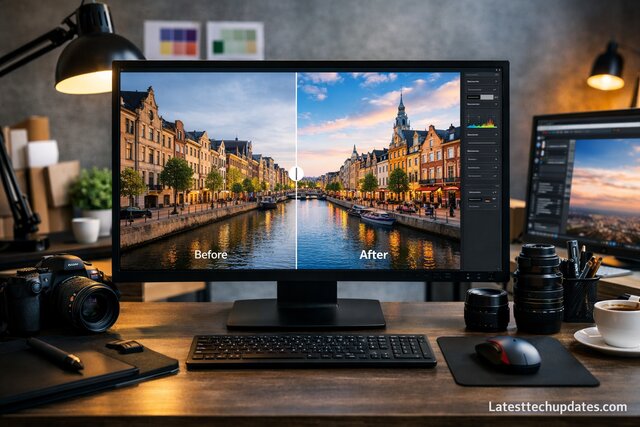
Sometimes you have an image that is good but not perfect. AI image enhancement helps improve clarity, lighting, and sharpness without manual editing. I personally use this when working with older photos or images taken in poor lighting.
The AI automatically adjusts brightness, contrast, and detail, making images look more professional. This is extremely helpful for blog graphics and thumbnails where image quality affects engagement.
What I like most is that it enhances images without making them look artificial. The result still feels natural.
Fixing Low Quality Images
Instead of discarding a slightly blurry photo, AI enhancement gives it a second life by improving clarity.
Maintaining Visual Consistency
When working with multiple images, this tool helps keep a consistent look across all designs.
AI Color Palette Generation for Brand Consistency
Choosing colors can be stressful, especially if you want your designs to match your brand. AI color palette generation removes guesswork by creating balanced color sets based on images or themes. I rely on this feature whenever I start a new project.
The AI analyzes visuals and suggests color combinations that naturally work together. This keeps designs visually pleasing and consistent across platforms.
Over time, I noticed that my brand visuals became more recognizable simply because the colors stayed consistent.
Matching Colors with Images
Upload an image and let AI extract matching colors. This makes designs feel cohesive and intentional.
Faster Branding Decisions
Instead of experimenting endlessly, you get ready-made palettes that work immediately.
AI Animation Tools for Engaging Visual Content

Static designs are great, but animated visuals capture attention faster. AI animation tools inside Canva help bring designs to life without complex timelines or editing skills. I use these animations mainly for social media and short presentations.
The AI suggests motion styles that feel smooth and natural. You do not need to manually animate every element, which saves a lot of time.
Animations that once took hours now take minutes, and they still look professional.
Creating Eye Catching Social Media Posts
Simple animations increase engagement, and AI makes them easy even for beginners.
Keeping Animations Subtle and Clean
The AI avoids overdoing motion, keeping designs polished and easy to watch.
AI Content Repurposing for Faster Design Creation
One of my favorite uses of AI is content repurposing. Instead of designing everything from scratch, AI helps adapt existing content into new formats. I often turn blog visuals into social media posts or presentations using this approach.
The AI understands layout differences and adjusts elements automatically. This allows me to maintain consistency while saving time.
For anyone managing multiple platforms, this feature is a game changer.
Turning One Design into Many
You can quickly resize and adapt designs for different platforms without redesigning everything.
Reducing Creative Burnout
By reusing content smartly, you stay productive without constantly feeling creative pressure.
Conclusion
After working with Canva for a long time and testing different AI-powered features, I can confidently say that these tools completely change how fast and confidently you design. What used to take hours now takes minutes, and instead of second guessing every choice, you move forward with clarity. From layouts and text to images and animations, AI quietly supports your creativity rather than replacing it.
What I personally love most is how these tools reduce stress. You do not feel stuck staring at a blank canvas anymore. Every design feels like a guided process where you stay in control but never feel alone. If your goal is to design faster, stay consistent, and still create visuals you are proud of, using AI with Canva is one of the smartest decisions you can make.
FAQ’s
Can beginners really design faster using AI tools in Canva?
Yes, absolutely. From my experience, beginners benefit the most because AI removes confusion at the starting point. Instead of wondering where to place text or which colors to choose, AI provides a clear direction. This helps new users gain confidence quickly while still learning design basics naturally over time.
Do AI tools limit creativity when designing?
Not at all. I actually found the opposite to be true. AI handles repetitive and technical tasks, which frees your mind to focus on creativity. You still make the final decisions, but you do it faster and with more clarity. Creativity improves because you spend less time fixing mistakes.
Are AI-powered designs suitable for professional use?
Yes, they are. I have personally used AI-assisted designs for blogs, business graphics, and marketing visuals. The final results look polished and professional. As long as you customize the designs to match your style or brand, they easily meet professional standards.
How do AI tools help with consistent branding?
AI helps maintain consistency by suggesting matching colors, layouts, and text styles across designs. From my experience, this makes your visuals look connected even when creating content on different days or for different platforms. Consistency becomes effortless instead of forced.
