


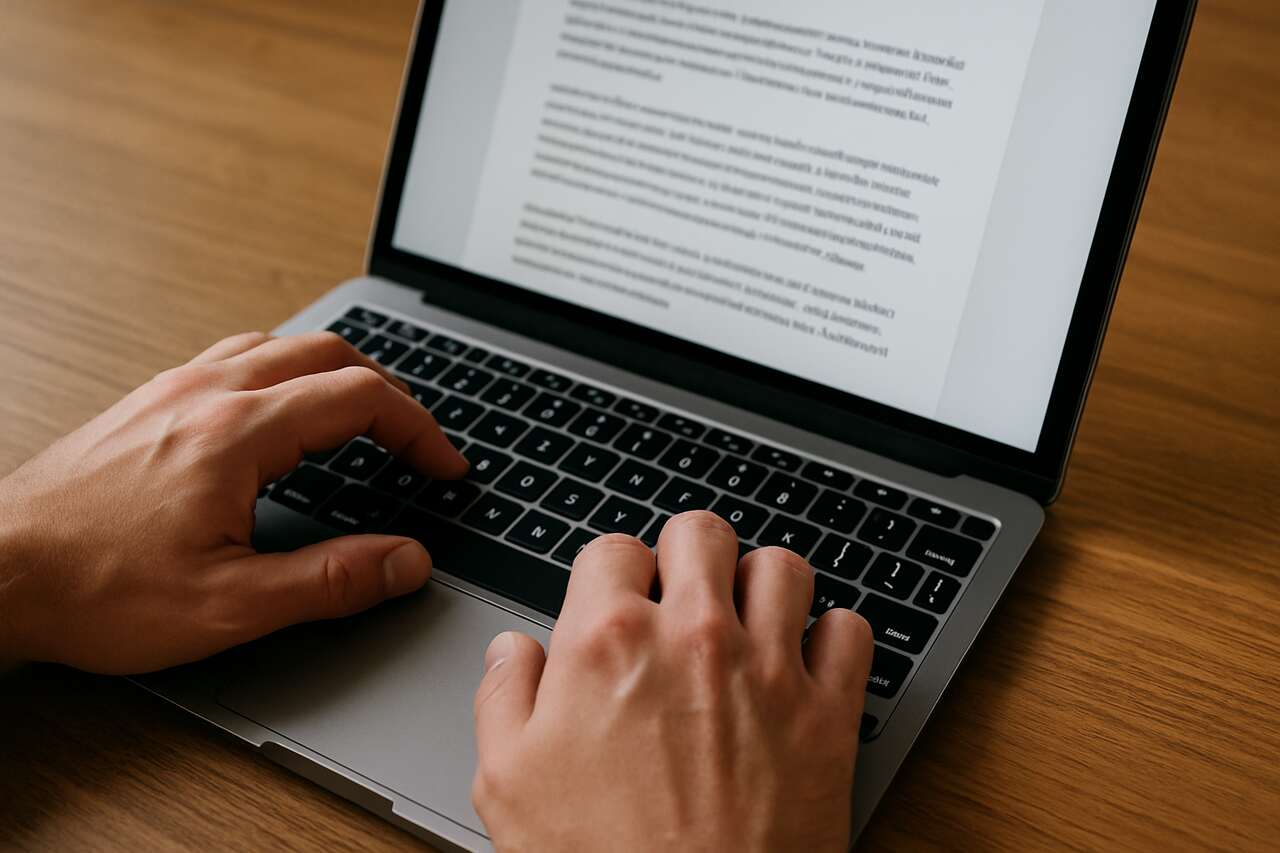
The em dash keyboard shortcut is one of the most useful yet overlooked tools for writers, editors, programmers, and content creators who want to produce clean, professional text quickly. Mastering the shortcuts across different systems improves typing efficiency, prevents formatting errors, and ensures consistent punctuation in documents, emails, and digital platforms. This guide provides a complete, structured walk-through of every major step, from identifying shortcuts to customizing your own, so you can integrate this powerful punctuation mark into your workflow with confidence.
Identify the Correct Em Dash Shortcut on Your Device
Learning the correct em dash shortcut for your device immediately improves writing speed and eliminates the need to copy symbols from external sources. The process involves locating the combination of keys supported by your operating system and confirming whether your software allows direct insertion.
Different operating systems provide distinct key combinations. Windows typically relies on the numeric keypad, while macOS uses built-in character shortcuts, and Linux distributions offer several configurable options. Mobile devices often embed the punctuation inside long-press menus on virtual keyboards, requiring manual selection rather than keystrokes.
Because device behavior varies, it helps to test shortcuts directly inside your preferred writing environment. Email clients, note apps, and document editors may override or modify system defaults, so taking a moment to confirm shortcut behavior prevents inconsistencies in your writing workflow.
Check System Settings for Text Input
Some systems require enabling specific keyboard settings before shortcuts work correctly. Verifying language input formats, installed keyboard layouts, or accessibility tools ensures the shortcut works as intended.
Test Shortcuts Across Multiple Applications
Programs like Google Docs, Microsoft Word, and Notion may interpret shortcuts differently. Testing helps maintain consistent punctuation across all platforms.
Use Built-In Shortcuts for Desktop Operating Systems
Desktop platforms remain the easiest environment for inserting an em dash because their keyboards support multi-key shortcuts. Using built-in keystrokes eliminates manual symbol insertion, dramatically speeding up long-form writing.
For macOS users, the combination of shift and option keys inserts the symbol seamlessly. Windows users rely on the alt key paired with a series of numbers on the numeric keypad, and this method works in most environments, including browsers and desktop apps. Linux users often modify their compose key settings to customize punctuation inputs.
Some applications override default system shortcuts. For example, professional editing software or programming environments may disable certain punctuation keys to prevent conflicts. Being aware of these exceptions makes it easier to troubleshoot issues without interrupting your writing flow.
Compare Desktop Shortcut Methods
| Platform | Shortcut Type | Notes |
| macOS | Shift + Option combination | Works in nearly all applications |
| Windows | Alt + numeric code | Requires numeric keypad |
| Linux | Compose key sequence | Customizable based on distribution |
Verify Keyboard Layout Compatibility
Certain keyboard layouts, such as international or compact versions, may not support full shortcut ranges. Checking compatibility avoids errors or missing punctuation marks during typing.
Insert an Em Dash Inside Word Processors and Writing Apps
Most professional writing tools provide built-in methods for inserting an em dash, beyond system-level shortcuts. These features help standardize punctuation within documents and suit users who prefer menu-based navigation over keyboard combinations.
Microsoft Word automatically transforms two consecutive hyphens into an em dash based on its AutoCorrect settings. Google Docs inserts the symbol through its insert menu or from built-in substitution rules, which can be customized. Notion, Scrivener, and other writing platforms often support both shortcuts and manual insertion menus to create a consistent writing environment.
While these tools simplify punctuation use, they may behave differently based on language settings, autocorrect preferences, and formatting rules. Modifying these settings ensures that the symbol appears whenever you expect it, without relying on guesswork.
Adjust Software Auto-Replace Settings
Auto-replace tools convert character sequences, such as double hyphens, into typographic symbols. Ensuring these rules are enabled keeps writing uniform and structured.
Use Menu-Based Insert Tools
Most writing apps include a dedicated insert menu for special characters, allowing users to insert the symbol directly without remembering shortcuts.
Create Your Own Custom Shortcut for Faster Typing
Creating a custom shortcut provides complete control over how you insert an em dash across different applications. Custom shortcuts are particularly helpful for users who frequently write long-form text or work in editing, journalism, UX writing, or academic research.
macOS allows users to assign text replacements, while Windows offers AutoHotkey scripting and built-in text replacement options through third-party tools. Linux users can configure compose keys or create shortcuts using system utilities. These customizations allow you to assign simple, memorable input combinations that suit your typing habits.
Custom shortcuts also help maintain consistent formatting across devices. Cloud-synced text expansion tools, for example, work across mobile and desktop platforms and ensure uniform punctuation no matter where you write.
Choose a Short, Memorable Trigger Sequence
Selecting a simple trigger ensures you never interrupt your writing flow. Avoid combinations that interfere with system-level commands.
Sync Shortcuts Across Devices
Using cloud-based text expansion tools allows writers to keep consistent rules across laptops, desktops, and tablets without manual reconfiguration.
Access the Em Dash from Mobile Keyboards
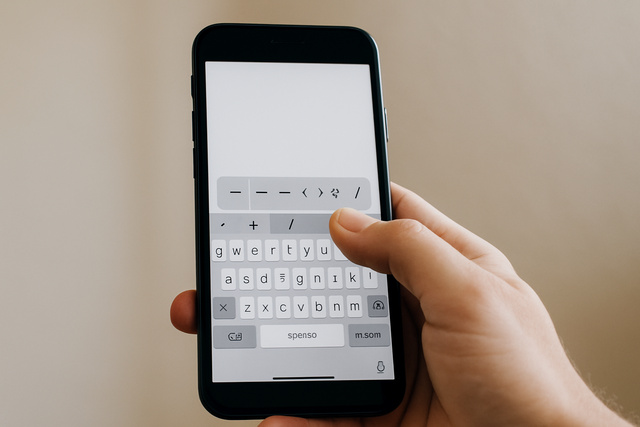
Mobile keyboards work differently from desktop environments, so inserting an em dash generally requires a long-press gesture rather than a shortcut. Understanding how to access the symbol quickly ensures smooth mobile writing in messages, documents, emails, and note-taking apps.
On iOS devices, the dash key provides multiple variations when long-pressed, including the em dash. Android keyboards behave similarly, though options vary between Gboard, Samsung Keyboard, SwiftKey, and other third-party tools. Some keyboards allow custom shortcuts through text replacement tools located in settings menus.
Because mobile writing often happens quickly such as during messaging or field note creation learning the fastest gesture for your keyboard prevents copying and pasting symbols, saving time and reducing frustration.
Enable Text Replacement Tools
Text replacement shortcuts convert short sequences into symbols automatically, minimizing the need for long-press menus.
Explore Third-Party Keyboards
Alternative keyboards may provide easier access to advanced punctuation or additional customization features.
Use Character Maps and Special Character Viewers
Character maps provide an excellent fallback method when shortcuts fail or when typing in restricted environments such as remote desktops, virtual machines, or secure software tools. These utilities display the full range of typographic symbols, allowing users to insert the em dash manually.
Windows includes a Character Map tool, macOS offers a Character Viewer, and Linux desktops typically include symbol palettes accessible through input settings. These tools let you copy the symbol and paste it into any document or application, ensuring you have access even in environments that disable shortcuts.
Character maps also provide insight into related punctuation marks, helping writers distinguish between hyphens, figure dashes, and en dashes, which are often confused but serve different functions in writing and typography.
Compare Character Map Tools
| System | Character Utility | Access Method |
| Windows | Character Map | Start Menu search |
| macOS | Character Viewer | Control + Command + Space |
| Linux | Character Palette | Varies by desktop environment |
Keep Symbol Utilities Easily Accessible
Adding character map tools to the taskbar or dock speeds up manual symbol insertion when shortcuts are unavailable.
Troubleshoot Issues with Em Dash Shortcuts
When shortcuts fail, identifying the underlying issue ensures quick recovery and consistent punctuation. Common problems include incorrect keyboard settings, disabled numeric keypads, conflicting software shortcuts, or applications that override system inputs.
Testing shortcuts in a plain-text editor helps determine whether the issue stems from the system or a specific application. Reviewing input settings, re-enabling numeric keypads, and checking for shortcut conflicts solves most problems quickly. Some software requires manual activation of auto-replace tools or language-specific punctuation rules.
Cross-platform users should also ensure their input language remains consistent. Switching between English, multilingual, and custom layouts can cause shortcuts to behave differently or insert incorrect characters.
Reset Keyboard Input Settings
Restoring default settings often resolves conflicts introduced by custom input methods or recent software changes.
Reconfigure Conflicting Shortcuts
Applications that reserve certain shortcut keys may block punctuation shortcuts. Adjusting those settings restores access to the symbol.
Conclusion
Mastering the em dash keyboard shortcut enhances writing speed, clarity, and typographic precision across all digital platforms. Whether typing on Windows, macOS, Linux, iOS, or Android, knowing how to insert this punctuation mark efficiently contributes to a smoother, more professional writing workflow. By understanding system shortcuts, customizing replacements, using mobile gestures, and leveraging character tools, you can confidently produce polished text in any environment.
FAQ’s
How do I type an em dash on Windows?
Use the alt key with the numeric code on the numeric keypad, or rely on software auto-replace tools inside writing apps.
Can I create a custom shortcut instead of using the default one?
Yes. Most systems allow custom text replacements or automation scripts to simplify symbol insertion.
Do mobile devices support em dash shortcuts?
Mobile keyboards require long-press gestures or text replacement rules instead of traditional shortcuts.
Why does the shortcut not work in my document editor?
Some applications override system inputs. Checking software settings and enabling auto-replace features typically fixes the issue.
Is the em dash available in character map tools?
All major operating systems include character utilities where you can copy and paste the symbol manually.
Can different keyboard layouts affect the shortcut?
Yes. International and compact keyboards may not support all key combinations, requiring customized settings or text replacements.
