
Highlights
- Discover practical alternatives to InDesign for layout design, publishing, and creative production
- Learn how each tool performs in typography, collaboration, templates, workflow, and pricing
- Understand which software fits beginners, freelancers, teams, and enterprise-level publishers
- Follow my personal experience choosing InDesign substitutes for real client projects
- Compare feature sets in clear tables for simple decision-making
- Explore detailed steps and subtopics under seven comprehensive headings
Choosing an InDesign alternative can feel overwhelming, especially when you need software that delivers strong layout control, reliable export options, and smooth workflow. Over the years, I have tested dozens of tools while managing client brochures, ebooks, brand magazines, and catalog production. In this article, I will walk you through the options that consistently perform well and explain how to choose the one that fits your workflow. My goal is to make the decision easier based on real project insights, practical comparisons, and clear guidance.
Identify Your Core Layout and Publishing Requirements
Before selecting an alternative to InDesign, you must understand the real needs of your design workflow. Whenever I work with a new client, I start by identifying the required output, the complexity of the design, and the level of collaboration expected in the project. This ensures the tool I choose will support the final deliverables without compromising speed or quality.
Many layout tools offer features like master pages, automatic styles, export presets, and typography systems. However, not every designer needs the full publishing depth that InDesign offers. Some tools work better for quick marketing materials, while others are built for intensive multi-page documents. Knowing where you fall along this spectrum helps you select the right software.
When I first began exploring alternatives, I realized certain tools excelled in print magazines while others performed best in digital-first documents. That insight alone saved me hours of trial and error. Your workflow may also benefit from exploring cloud-based tools, subscription-free tools, or cross-platform flexibility depending on your environment.
Determine the Type of Projects You Plan to Create
Assess the recurring project types you produce, such as booklets, magazines, ebooks, or brand guides. Each of these can require specific features like advanced grids, precise alignment tools, or interactive elements. The clearer you are about your project type, the easier the decision becomes.
Evaluate Format and Export Requirements
Some software excels in PDF/X compliance, while others shine in digital exports like HTML or ePub. Make a list of the formats your clients or teams require. This ensures you choose a tool that handles your production pipeline without additional adjustments.
Compare Feature Sets Across Leading Design Tools
After identifying your requirements, the next step is comparing the capabilities of popular alternatives. This is where I personally found the biggest differences between tools. Some offer incredible speed and simplicity, while others mirror InDesign’s advanced publishing features.
The most useful approach is to compare typography, layout precision, export quality, automation, and file compatibility. These categories directly impact how efficiently you can create documents. Over time, I realized that even small differences in layout engines or type handling could significantly influence my final output.
Below is a comparison table that outlines the strengths of popular InDesign alternatives so you can decide confidently.
Comparison of Popular InDesign Alternatives
| Software | Ideal For | Strengths | Weaknesses |
| Affinity Publisher | Print and digital design | Powerful features, one-time purchase | Limited collaboration |
| Scribus | Open-source publishing | Free, supports complex layouts | Interface feels outdated |
| Canva | Marketing teams and beginners | Easy to use, cloud-based | Not suitable for complex books |
| VivaDesigner | Desktop and web workflow | Professional layout tools | Learning curve |
Examine Layout Precision and Typography Handling
Some alternatives offer advanced kerning, baseline grids, and typographic features that closely match InDesign. If your work involves fine typography, prioritize tools that maintain this level of control.
Review Collaboration and Cloud Features
Teams often rely on real-time collaboration. If you work across departments or with remote clients, choose a platform that offers shared access, commenting tools, and cloud syncing.
Explore Affinity Publisher as a Professional Replacement
Affinity Publisher has become one of the strongest contenders for designers seeking a serious alternative. I often rely on it for client projects that demand high-quality print output without the ongoing cost of subscription plans. It offers master pages, advanced grids, and precision typography similar to what InDesign delivers.
One of my favorite aspects is the seamless environment when paired with Affinity Designer and Affinity Photo. This allows quick editing of vector graphics or images without breaking the layout workflow. For complex projects like magazines or structured documents, Affinity Publisher performs with excellent reliability.
Its one-time purchase model makes it accessible for freelancers who need powerful design tools without monthly fees. The downside is limited real-time collaboration, but for solo designers or small teams, it remains a strong option.
Use Master Pages and Styles for Faster Production
Affinity Publisher includes master pages, text styles, and layout rules, which let you build consistent designs quickly. If you work with multi-page documents, this becomes essential.
Leverage StudioLink for Cross-App Editing
The StudioLink feature connects the entire Affinity ecosystem. It allows you to switch between vector editing and photo editing within the same document, increasing speed and efficiency.
Consider Scribus for Budget-Friendly Professional Layout Work
Scribus offers a capable open-source environment for designers who want a dependable tool without cost. I tested Scribus extensively on brochure and academic document projects. While it lacks the polished interface of commercial software, its layout engine is surprisingly powerful.
It supports CMYK workflows, spot colors, PDF/X, and strong typographic control. For designers who prioritize print readiness and customization, Scribus provides a viable path. However, be prepared for a learning phase if you are used to modern interfaces.
I found it particularly useful for nonprofit projects or clients with open-source priorities. It performs well as long as your workflow does not depend on advanced collaboration or rapid real-time editing.
Utilize Open-Source Flexibility and Plugins
Scribus has a wide range of community-driven scripts and additions. You can extend functionality with automation tools or export features suited to specific industries.
Set Up Print-Ready Documents with Precision
When configured properly, Scribus generates print-ready files that meet commercial printing standards. This includes bleed settings, color profiles, and preflight checks.
Adopt Canva for Quick, Marketing-Driven Layouts
For marketers, content creators, and business teams, Canva provides an easy alternative to InDesign. I frequently recommend Canva when clients need rapid turnaround times and accessible templates. The cloud-based interface makes it ideal for collaborative environments.
Canva excels at social media content, presentations, and simple brochure designs. Its enormous template library reduces design time dramatically. Despite these strengths, Canva is not built for long-form publishing or high-precision print layouts.
Whenever I train new team members or clients who lack design experience, Canva becomes the fastest way to get them producing professional-looking materials.
Use Templates to Accelerate Creative Output
Canva contains thousands of ready-made templates for brochures, flyers, documents, and more. These allow beginners to create polished designs instantly.
Collaborate in Real Time with Teams and Clients
Canva supports team folders, shared editing, and live commenting. This makes it one of the most accessible collaborative design tools available.
Evaluate Web-Based Layout Tools for Remote Collaboration
Cloud-based publishing tools have grown significantly, providing strong options for remote teams. Many of these solutions allow real-time editing and browser-based workflows. This eliminates installation issues and ensures that documents remain synchronized across devices.
These tools often integrate with cloud storage and offer role-based permissions. When I worked on distributed marketing teams, cloud-based platforms removed bottlenecks associated with desktop-only tools. However, they may lack the refined precision of traditional software.
If your workflow prioritizes accessibility, collaboration, and ease of use over advanced print controls, a web-based solution can be an excellent choice.
Prioritize Tools with Real-Time Editing
Look for platforms that allow multiple users to work on the same document at the same time. This accelerates team productivity.
Review Integration Options with Other Business Tools
Some web-based platforms integrate with CRM systems, email tools, and asset libraries. This improves workflow efficiency for marketing departments.
Test VivaDesigner for Hybrid Desktop and Web Publishing
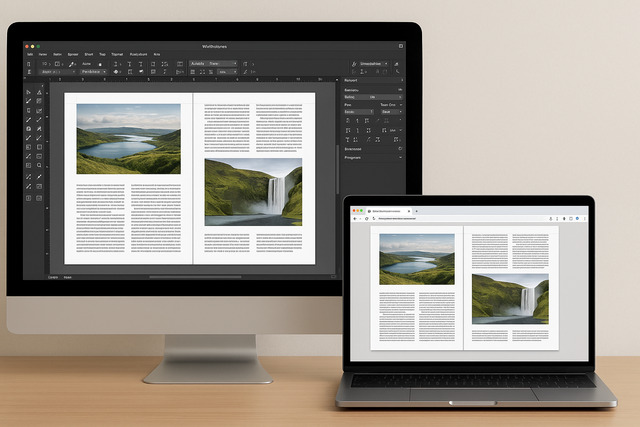
VivaDesigner offers a blend of professional desktop publishing and browser-based editing. It is often used in educational institutions and corporate environments where structured documents and precision layout tools are required.
What impressed me most during testing was its ability to handle large documents without performance issues. The interface resembles a streamlined version of traditional layout software while offering configuration options tailored to publishing teams.
Its web-editing mode enables clients or collaborators to make controlled edits without altering the core layout. This feature is helpful for maintaining brand consistency across departments.
Configure Templates for Organization-Wide Consistency
Templates created in VivaDesigner can be locked or partially editable, ensuring teams adhere to brand guidelines.
Enable Controlled Access for Non-Designers
Users without design training can modify text while designers maintain control over structure and formatting.
Select the Right InDesign Alternative Based on Your Workflow
After evaluating these tools, the final step is choosing the one that best fits your workflow. Consider your design experience, the type of projects you handle, and the level of collaboration required. Through my personal experience, I have seen that no single tool fits every designer or team. Instead, the best choice depends on clarity and alignment with your actual work.
If you need high-level print control, choose a robust desktop tool. If speed and collaboration matter more, choose a cloud platform. For cost efficiency, choose free or one-time purchase tools. Each path leads to reliable results when matched properly.
Below is a summary table to help you finalize your decision.
Recommended InDesign Alternatives by Use Case
| Use Case | Recommended Tool |
| Complex print publishing | Affinity Publisher |
| Free professional layout | Scribus |
| Quick marketing content | Canva |
| Hybrid team workflows | VivaDesigner |
Align the Tool with Your Project Complexity
Evaluate how demanding your designs are. Light projects require simple tools while advanced layouts benefit from feature-rich software.
Consider Cost, Learning Curve, and Long-Term Workflow
Think about subscriptions, training time, and whether the tool will scale with your future projects.
Conclusion
Exploring an InDesign alternative opens new opportunities for affordability, collaboration, and creative flexibility. Whether you choose Affinity Publisher for professional print work, Canva for rapid marketing design, Scribus for cost-free publishing, or VivaDesigner for hybrid environments, each option offers unique advantages. Throughout my journey working on client layouts, I found that the best alternative always depends on clear project requirements and workflow patterns. By understanding your needs and comparing the strengths of each tool, you can make a confident decision and build a more efficient design process.
FAQ’s
1. What is the best InDesign alternative for beginners?
Canva is the easiest for beginners due to its templates, simple interface, and collaborative tools.
2. Which InDesign alternative is closest to InDesign in features?
Affinity Publisher is the closest match in professional print controls, layout depth, and typographic precision.
3. Are there free alternatives to InDesign?
Yes. Scribus is the strongest free option and supports advanced layouts suitable for print publishing.
4. Can cloud-based tools replace InDesign for teams?
Yes. Web-based tools offer real-time collaboration and ease of access, which benefits distributed teams.
5. Is Affinity Publisher good for long documents?
Yes. It handles books, reports, and magazines with strong performance, especially when paired with Affinity Designer and Photo.
6. Which option is best for marketing agencies?
Canva works well for marketing teams thanks to its templates, speed, and collaboration features.
