
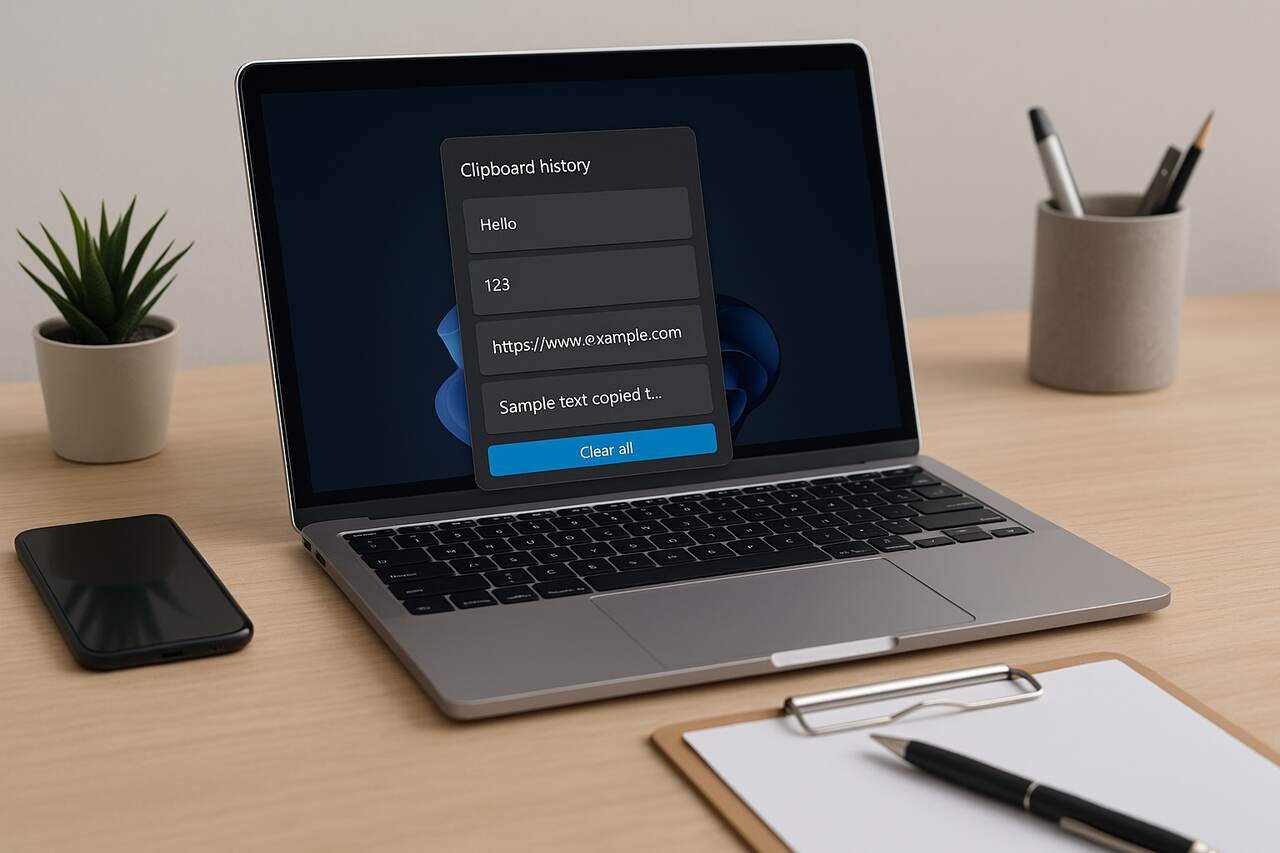
Windows clipboard history gives users a fast way to copy, store, and reuse multiple items across applications. It improves productivity by keeping text, images, and copied content available even after closing programs or copying new items. This guide explains how to activate it, manage stored items, enhance workflow, and troubleshoot common issues while maintaining efficient organization throughout daily tasks.
Enable Clipboard History in Windows
Enabling clipboard history allows you to save more than one copied item at a time, making it easier to reuse text or images. Windows provides a built-in toggle that activates this feature quickly. Once enabled, pressing a simple shortcut opens a panel of previously copied content ready for reuse.
Windows offers two main ways to turn it on. The fastest option is through the keyboard shortcut Windows + V, which prompts an activation message. Another option is using the Settings panel under System and Clipboard to manually switch the feature on. Both methods instantly begin storing copied items once activated.
After enabling it, the system starts recording new content automatically. Items remain available until the computer restarts unless manually pinned. This flexibility helps users keep important items accessible during work sessions without needing constant re-copying.
Open Clipboard Settings
You can access the settings menu to control storage behavior and adjust clipboard options. These settings include controls for syncing across devices and managing storage capacity. Revisiting this panel ensures your preferences remain aligned with your workflow.
Activate Using Keyboard Shortcut
Press Windows + V at any moment to enable history instantly. If it is not turned on, Windows displays an activation prompt. After clicking confirm, the panel becomes usable for all future copying actions.
View and Retrieve Stored Clipboard Items
Once clipboard history is active, retrieving saved items becomes a simple and efficient process. Pressing Windows + V displays all recently copied items in a scrollable panel. Each item remains selectable, allowing quick pasting into documents, emails, or forms.
This panel shows a preview of copied text, links, and supported images. Selecting an item inserts it directly where your cursor is placed. The panel organizes items in chronological order, with the most recent at the top. This structure ensures you can quickly locate the content you need.
Using this interface improves writing, coding, and administrative tasks significantly. Instead of repeating multiple copy-and-paste cycles, users can refer to a whole collection of useful snippets without losing progress in an application.
Navigate the Clipboard Panel
Scrolling lets you review older items with ease. Each item includes a small preview that gives you enough detail to recognize it before pasting. This reduces mistakes and speeds up workflow.
Insert Selected Content
Clicking or tapping an item pastes it immediately. This direct insertion eliminates the need to re-copy items and provides smoother control over repeated pasting activities.
Pin Items to Keep Them Stored Longer
Pinning clipboard items ensures that important content stays available even after restarting or clearing your history. This function is ideal for recurring tasks such as templates, frequently used text blocks, email signatures, or repetitive codes.
To pin an item, open Windows + V, then click the small pin icon beside any entry. Pinned items move into a stable position within the list, making them easy to locate during extended work periods. They are preserved until manually unpinned by the user.
Pinning provides a convenient way to maintain consistency across daily tasks. It helps writers, administrators, developers, and customer support teams store reliable content without worrying about losing it during restarts or system updates.
Identify Essential Items
Look for text or images you use frequently and add them to the pinned section. This step helps you create a library of reusable pieces that improve productivity throughout the day.
Manage Pinned Content
You can pin or unpin items whenever your needs change. Keeping this list updated ensures your clipboard remains organized and useful for evolving tasks.
Sync Clipboard Data Across Multiple Devices
Windows offers the option to sync clipboard history across devices through a Microsoft account. When enabled, copied text becomes accessible on any connected device, including laptops, desktops, and tablets. This capability creates seamless transitions between work environments.
To turn syncing on, visit Settings, open the Clipboard section, then enable the sync toggle. You can choose whether to sync everything automatically or require manual confirmation for each item. Both options provide security and flexibility depending on usage habits.
Device syncing supports multitasking across locations. For example, you can copy text on one computer and paste it into another without emailing or transferring files. This reduces friction and supports faster collaboration when working on different systems.
Connect Using a Microsoft Account
Syncing requires signing in with an active Microsoft account. The account links devices and maintains clipboard continuity. Confirm your login information to ensure stable connectivity.
Choose Sync Behavior
You can select automatic syncing or manually approve items. The manual option adds an extra layer of oversight for sensitive content.
Clear Clipboard History for Better Performance
Clearing clipboard history removes temporary items and keeps your storage clean. This helps maintain system responsiveness and ensures sensitive information does not remain accessible. Windows provides a simple option in the settings menu for removing stored items.
You can delete individual items using the Windows + V panel, or clear the entire history through the Settings interface. Items that are pinned remain safe during a full clear, allowing you to maintain essential pieces while removing unnecessary clutter.
Regularly clearing your history ensures only active and relevant items remain accessible. It also improves confidence when sharing or lending your device since sensitive content will not appear in the clipboard panel.
Clear Items Individually
In the clipboard panel, click the small X next to any entry to remove it. This is useful for deleting sensitive or outdated content.
Clear All Unpinned Items
The Settings menu provides an option to wipe the whole history at once. Pinned content remains intact, protecting your most valuable items.
Use Advanced Clipboard Keyboard Shortcuts
Windows includes built-in shortcuts that enhance clipboard operations for faster access. These shortcuts streamline copying, viewing, and pasting while minimizing mouse movement. Knowing these combinations saves time and improves accuracy during busy tasks.
The most important shortcut is Windows + V, which opens the full clipboard history. Standard shortcuts like Ctrl + C and Ctrl + V continue to function normally but work in tandem with the expanded system. Additional shortcuts help you interact with pinned content and handle multiple entries efficiently.
Mastering these shortcuts transforms daily workflows. Whether drafting documents, coding, researching, or managing data, shortcut knowledge ensures smoother transitions between tasks and reduces repetitive actions.
Essential Shortcut List
Common combinations include:
- Ctrl + C for copying
- Ctrl + X for cutting
- Ctrl + V for pasting
- Windows + V for opening history
These shortcuts form the core of fast clipboard usage.
Improve Workflow with Quick Actions
Practice using these shortcuts regularly to build speed. Repetition makes pasting and retrieving content second nature.
Troubleshoot Clipboard History Issues
If clipboard history stops working, Windows provides several solutions that restore functionality. Common causes include disabled settings, software conflicts, and temporary system glitches. Running through a few checks usually resolves the issue quickly.
First, ensure the clipboard history setting is active. If it is already enabled but not functioning, try restarting the device. Another approach is checking for pending updates, as outdated systems may cause compatibility interruptions. Occasionally, third-party applications can interfere with clipboard behavior, requiring temporary disabling or uninstalling.
Resolving these problems ensures uninterrupted productivity. Addressing minor issues early keeps clipboard features reliable and accessible throughout daily tasks.
Test Clipboard Functions
Try copying and pasting simple text. If it fails, open Windows + V to determine whether history loads. This helps identify whether the issue is isolated to a specific program.
Reset Clipboard Settings
Turn the clipboard history toggle off, restart your system, then turn it back on. This refresh often restores normal operation.
Clipboard History Comparison
| Action | Purpose | Method |
| Enable History | Allows storing multiple copied items | Use Settings or Windows + V |
| Pin Items | Preserve important entries | Click pin icon in clipboard panel |
| Clear History | Remove temporary content | Use Settings or delete individually |
| Sync Devices | Access same items on multiple devices | Microsoft account required |
Shortcut and Function Summary
| Feature | Description | Shortcut or Path |
| Open History | Displays all copied items | Windows + V |
| Copy Content | Adds item to clipboard | Ctrl + C |
| Paste Content | Inserts item | Ctrl + V |
| Clipboard Settings | Modify storage options | Settings > System > Clipboard |
Conclusion
Windows clipboard history provides a powerful way to store, reuse, and organize copied content. Activating it opens up a more efficient workflow that reduces repetitive copying and supports multitasking across applications and devices. With tools for pinning, syncing, clearing, and troubleshooting, users gain complete control over their clipboard data. Applying these features ensures smoother document creation, controlled data management, and consistent productivity throughout the day.
FAQ’s
- Why is clipboard history not showing when I press Windows + V?
It may be turned off in Settings. Go to System, open Clipboard, and enable the history toggle. - Does clipboard history save items permanently?
Only items you pin stay permanently. All other items disappear after restarting or clearing the history. - Can clipboard history store images?
Yes, it stores supported images and text entries depending on the source application. - How many items can clipboard history keep?
It stores up to several dozen recent items, though only pinned items remain indefinitely. - Does syncing clipboard content require internet access?
Yes, syncing works through your Microsoft account and requires an active online connection. - Can I disable clipboard history anytime?
Yes, you can turn it off in Settings, which stops storing new items immediately.
