
The iPhone 18 Pro Max is more than a phone that happens to record good video. Apple has given it several features that fit directly into professional production workflows, including 4K recording up to 120 fps, Apple ProRes, ProRes RAW, Apple Log 2, manual video controls, external SSD recording, timecode, and genlock support.
The important point is that these features solve different problems. Shooting 4K does not automatically mean you should use ProRes. ProRes does not automatically mean you should use Log. Apple Log 2 does not give you the same editing flexibility as ProRes RAW. For everyday video, HEVC may still be the better choice.
For filmmakers, commercial creators, documentary shooters, journalists, and advanced content creators, however, the iPhone 18 Pro Max can now fit much more naturally into a professional camera workflow.
iPhone 18 Pro Max video capabilities at a glance
The rear camera system can record standard 4K Dolby Vision video at 24, 25, 30, 60, 100, or 120 frames per second, although 100 fps and 120 fps are tied to the Fusion Main camera. Apple also supports ProRes recording at up to 4K 120 fps when compatible external storage is connected.
| Recording feature | iPhone 18 Pro Max capability | Why it matters |
| Standard 4K video | Up to 4K 120 fps on Fusion Main | High-resolution normal and slow-motion capture |
| Dolby Vision | Available for 4K video | HDR capture with a simpler finished-video workflow |
| Apple ProRes | Up to 4K 120 fps with external storage | Better suited to editing and color-intensive workflows |
| Apple Log 2 | Supported | Gives colorists more control over highlights, shadows, and color |
| ProRes RAW | Supported through apps such as Final Cut Camera | Provides substantially more flexibility in post-production |
| Manual controls | Aperture, shutter speed, white balance, histogram | Makes exposure and motion more predictable |
| Genlock | Supported | Allows synchronized professional multicamera workflows |
| External recording | USB-C storage supported | Avoids filling the iPhone during large ProRes shoots |
| USB connection | USB 3, up to 10Gb/s | Supports high-speed storage and file transfers |
Apple specifies USB 3 transfer speeds of up to 10Gb/s on the iPhone 18 Pro models when an appropriate 10Gb/s USB 3 cable is used.
What ProRes actually does on the iPhone 18 Pro Max
Apple ProRes is mainly useful when the video will go through serious editing or color work.
Normal iPhone video is commonly recorded using HEVC, also known as H.265. HEVC compresses video efficiently, which keeps files relatively small. That makes it excellent for normal filming, social media, travel videos, and clips that need little post-production.
ProRes takes a different approach. It uses much less aggressive compression and is designed around editing performance and image preservation. Apple describes ProRes as providing high image quality while supporting efficient multistream editing.
In practical terms, ProRes can make sense when you expect to:
- perform substantial color correction or grading;
- combine iPhone footage with footage from professional cameras;
- repeatedly render or process the material;
- use chroma keying, visual effects, compositing, or complex editing;
- deliver footage into a professional post-production workflow.
The cost is storage.
Apple notes that iPhone ProRes files can be up to 30 times larger than HEVC files.
That is why turning ProRes on for every family video or casual clip usually makes little sense.
How large are ProRes files?
The difference becomes clearer when looking at Apple’s figures from Final Cut Camera.
For 4K 30 fps recording, Apple says one minute can require more than approximately:
| Codec | Approximate storage for 1 minute |
| HEVC | 175 MB |
| ProRes 422 LT | 3.1 GB |
| ProRes 422 | 4.4 GB |
| ProRes 422 HQ | 6.6 GB |
| ProRes RAW | 10 GB for full-sensor recording |
| ProRes RAW HQ | 15 GB for full-sensor recording |
These are Apple’s stated estimates and actual storage requirements can vary with the recording configuration.
A 20-minute interview in ProRes 422 HQ, for example, can therefore consume well over 100 GB. ProRes RAW can become even more demanding.
This is one of the biggest practical differences between using an iPhone as a normal camera and using it as a production camera. Storage becomes part of the camera rig.
Internal ProRes versus recording to an external SSD
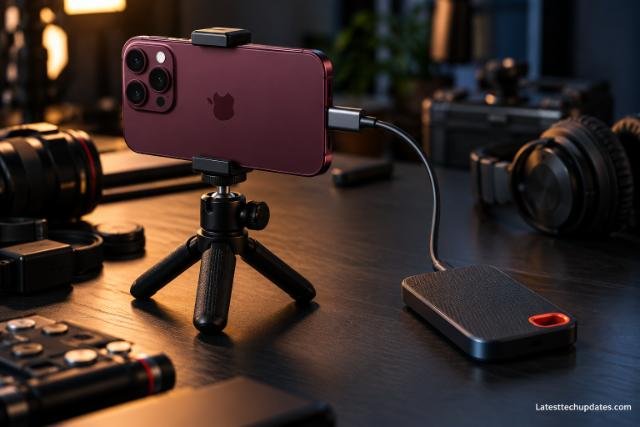
The iPhone 18 Pro Max starts with 256GB of storage and is available with 512GB, 1TB, or 2TB capacities.
Even 1TB can disappear quickly during a serious ProRes shoot.
Apple’s current iPhone guide supports normal ProRes recording internally at up to 4K 30 fps. For the iPhone 18 Pro series, 4K 120 fps ProRes requires compatible external storage.
This makes an external SSD especially useful for longer interviews, commercial work, live events, short films, and other shoots where stopping to transfer footage would be disruptive.
Apple specifies some important requirements for high-frame-rate external ProRes recording. Its ProRes guidance calls for a 10Gb/s USB 3 connection and storage capable of sustained writes of at least 220MB/s for 4K60 ProRes and 440MB/s for 4K120 ProRes.
A drive being advertised as “fast” does not automatically guarantee reliable recording. Its sustained write performance, USB connection, cable, power consumption, and file-system configuration all matter.
iPhone 18 Pro Max has a new Pro Video Storage setup
The iPhone 18 Pro models add an important storage-management step.
When Apple ProRes is first enabled, Apple instructs users to go to:
Settings > Camera > Formats > Apple ProRes
The phone then asks you to configure Pro Video Storage, which reserves an amount of storage for professional video recording. The reserved amount can later be changed or removed.
This is worth configuring before arriving on a shoot. Discovering that your phone does not have enough available recording space after lighting, sound, talent, and locations are ready is an avoidable production problem.
What is Apple Log 2?
Apple Log 2 is designed for video that will be color graded rather than used directly from the camera.
A log recording intentionally looks flat, with low contrast and muted colors. That appearance is not a defect. The goal is to preserve more useful tonal and color information for post-production.
Apple says Apple Log 2 retains highlight and shadow detail while providing a wider color gamut than the original Apple Log, giving filmmakers more flexibility during capture and grading. Apple Log 2 requires an iPhone 17 Pro or later Pro model, so it is fully supported by the iPhone 18 Pro Max.
Why Apple Log 2 matters
Consider a scene containing a person standing indoors beside a bright window.
With a heavily processed recording, the phone has already made many decisions about contrast, highlight roll-off, saturation, and overall appearance. That can produce an attractive result immediately, but it gives the editor less room to change the look later.
Log footage gives the colorist more flexibility to balance the bright window, shadow detail, skin tones, and overall contrast.
That matters when:
- matching several cameras;
- producing a particular cinematic look;
- working with difficult lighting;
- creating both SDR and HDR deliverables;
- performing detailed color correction.
For someone who simply wants to record a video and upload it immediately, Log usually adds unnecessary work.
Apple Log 2 needs color grading
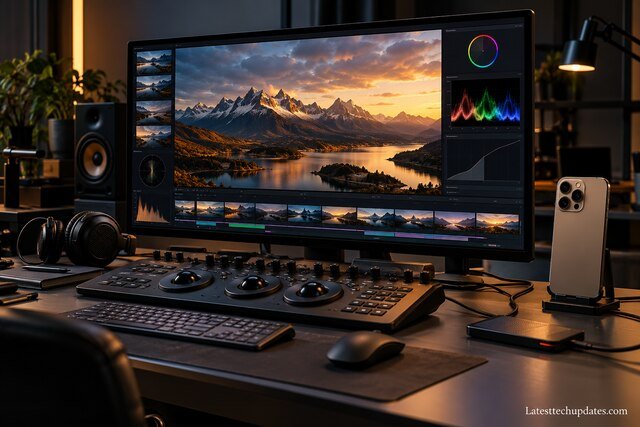
One common mistake is recording Log because it sounds more professional and then wondering why the finished footage looks gray.
Log footage is intended to be transformed and graded.
Final Cut Camera can apply a preview LUT, or Look-Up Table, so you can monitor the image with more normal contrast and color while still recording the underlying Log footage. Apple provides preview options that can map Apple Log or Apple Log 2 into SDR Rec.709 or HDR HLG displays.
The LUT preview does not mean the phone has permanently baked that look into the Log recording. It gives the operator a more useful monitoring image.
Apple Log 2 versus ProRes: they are not the same thing
This distinction causes a lot of confusion.
ProRes is primarily a codec family. Log describes how tonal and color information is encoded.
You can therefore record ProRes using Apple Log 2.
Think of it this way:
ProRes determines how the video data is compressed and stored.
Apple Log 2 determines how brightness and color are represented for grading.
For a commercial production, ProRes plus Apple Log 2 can therefore be a useful combination.
For smaller projects where storage is more important, Final Cut Camera also supports recording Apple Log 2 using HEVC. Apple’s current release notes specifically mention Apple Log 2 in both ProRes and HEVC.
That can provide a useful middle ground: Log-style grading flexibility without the enormous storage requirements of ProRes.
What is ProRes RAW on iPhone 18 Pro Max?
ProRes RAW goes another step beyond conventional ProRes Log recording.
Instead of recording a processed video image in a normal video color space, ProRes RAW preserves data much closer to what comes from the camera sensor.
Apple officially lists ProRes RAW as an iPhone 18 Pro Max recording format, and its iPhone guide states that iPhone 17 Pro and iPhone 18 Pro models can record ProRes RAW through applications such as Final Cut Camera.
That can give an editor substantially more control in post-production.
For example, Final Cut Pro can expose ProRes RAW controls for settings including ISO, exposure bias, color temperature, and tint when the required information is present in the clip metadata.
ProRes RAW is not automatically the best choice
RAW sounds like the obvious professional option, but it creates a much heavier workflow.
You need to consider:
- very large files;
- storage speed;
- backup requirements;
- editing-software support;
- workstation performance;
- longer media-management times;
- the extra work involved in developing and grading the footage.
If you are producing quick online videos, standard HEVC or HEVC with Apple Log 2 can be much more efficient.
For a controlled commercial shoot where maximum post-production flexibility is valuable, ProRes RAW becomes far more interesting.
4K 120 fps changes what the iPhone can do
The Fusion Main camera can record normal 4K Dolby Vision at 120 fps, while 4K120 ProRes is available when recording to suitable external storage.
A high frame rate gives you two main options.
You can capture fast movement more clearly when the final project actually runs at a high frame rate, or you can slow 120 fps footage down substantially in a 24 fps or 30 fps timeline.
That makes it useful for subjects such as sports, water, product shots, fashion movement, vehicles, action sequences, and detailed B-roll.
But 120 fps should not automatically become your default.
Higher frame rates generally require shorter exposure times to preserve natural motion, which means each frame receives less light. File sizes and processing requirements also increase. For interviews and dialogue scenes, 24, 25, or 30 fps will usually be more appropriate.
Manual shutter speed, white balance, aperture, and histogram
The iPhone 18 Pro Max takes another step toward conventional camera operation by giving users Pro controls for aperture, shutter speed, white balance, and histogram monitoring.
These controls matter because automatic settings can change during a shot.
Shutter speed
Shutter speed controls how long each frame is exposed.
For cinema-style motion, filmmakers commonly choose shutter speeds that produce a familiar amount of motion blur rather than allowing the camera to change shutter speed continually.
That often means using approximately:
- 1/48 or 1/50 second around 24 or 25 fps;
- 1/60 second around 30 fps;
- 1/120 second around 60 fps.
These are creative conventions rather than rules. Bright outdoor shooting may also require an appropriate neutral-density filter if you want to hold a slower shutter speed.
White balance
Locking white balance prevents the image from becoming warmer or cooler as the composition changes.
That is especially important when several shots need to match.
Histogram
A histogram provides a visual representation of the brightness distribution in the image. It helps the operator judge exposure without relying only on how bright the phone screen appears.
Aperture
The iPhone 18 Pro series also introduces variable aperture on its Fusion Main camera, giving the operator another way to control light and depth of field. Apple says the camera can use multiple aperture settings and provides manual aperture control through its Pro controls.
For video production, this is more useful than an aperture specification alone. It provides another exposure and creative control that can help the phone behave more like a dedicated camera.
Genlock makes multicamera production much more serious
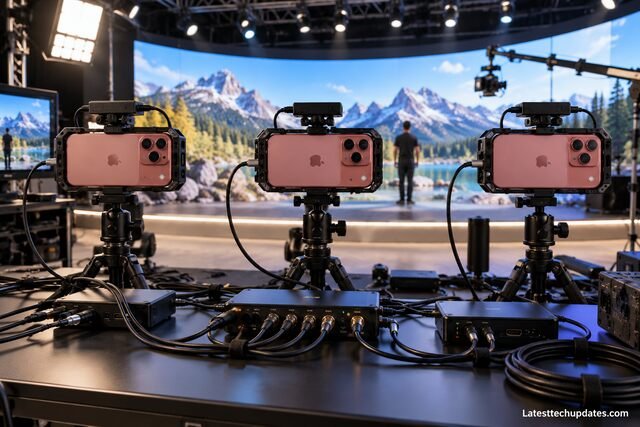
Genlock is one of the least consumer-oriented features of the iPhone 18 Pro Max, but it may be one of the most important for professional production.
Genlock synchronizes the exact timing of frames produced by multiple video sources.
Apple supports external genlock with iPhone 17 Pro or later Pro models using Final Cut Camera and appropriate hardware. Its documented setup can use compatible docks such as the Blackmagic Camera ProDock together with a sync generator and BNC connections.
This is different from simply recording several phones and aligning the clips later.
Precise synchronization is useful for:
- multicamera studios;
- virtual production;
- visual-effects shoots;
- synchronized LED-wall production;
- events using multiple locked cameras.
Final Cut Camera also supports Record Run, Time of Day, and external timecode options for organizing and synchronizing footage.
[IMAGE PROMPT: Create a hyper-realistic, photorealistic, high-resolution technology photograph of three iPhone 18 Pro Max devices operating as synchronized professional cameras in a small virtual production studio, each mounted horizontally in realistic camera cages and connected through professional USB-C docks with properly routed cables, a compact genlock sync system and BNC cabling visible on the equipment table, LED production screen softly blurred in the background, controlled studio lighting, wide camera angle, technically accurate scale and connections, no fake interface text, no watermarks.]
What about the front camera?
The 18MP Center Stage front camera is considerably more capable than a normal selfie-video system.
Apple lists 4K Dolby Vision up to 60 fps, Apple Log 2, ProRes RAW, and external ProRes recording up to 4K 60 fps for the front camera.
This can make it useful for solo presenters, creators, interviews where monitoring yourself is important, and compact multicamera setups.
It does not match every capability of the rear Fusion Main camera, however. In particular, the headline 4K120 recording mode belongs to the Fusion Main camera.
Audio is still part of professional video
Professional-looking footage can quickly feel amateur when the audio is poor.
Apple equips the iPhone 18 Pro Max with four studio-quality microphones, Spatial Audio and stereo recording, wind noise reduction, Audio Zoom, and Audio Mix.
Those features are useful, but a professional production should still consider external audio when dialogue is important.
A wireless lavalier system, shotgun microphone, external recorder, or dedicated sound operator can give you better microphone placement and more predictable results.
The USB-C port becomes especially important once the phone needs to handle storage, audio, power, monitoring, and other accessories at the same time. At that point, a properly designed USB-C dock or camera rig can be much more practical than connecting accessories one by one.
A practical professional recording setup
A sensible iPhone 18 Pro Max production kit does not need to be enormous.
For serious work, I would prioritize the recording chain in this order:
- Stable mounting. Use a tripod, gimbal, cage, or other secure support appropriate for the shot.
- Reliable storage. For high-bitrate ProRes, use a fast SSD that meets Apple’s required sustained write speed.
- Correct USB cable. A fast SSD paired with a slow cable still creates a slow recording path.
- Audio. Use an external microphone when clean dialogue matters.
- Power. Plan for long recording sessions rather than depending only on the internal battery.
- Exposure control. Use manual shutter speed, white balance, aperture, and an ND filter when needed.
- Monitoring. Check exposure, focus, remaining recording time, audio, and storage before each take.
- Backup. Treat the SSD as camera media, not as your only permanent copy.
That last point is particularly important. Professional codecs create large and valuable files. After an important shoot, create another copy before formatting or reusing the recording drive.
Which format should you actually use?
For most people, HEVC remains the sensible default.
Use 4K HEVC or Dolby Vision when you want excellent-looking video, manageable file sizes, and little post-production.
Use HEVC with Apple Log 2 when you want more grading control but cannot justify ProRes storage requirements.
Use ProRes with Apple Log 2 when image manipulation, camera matching, professional editing, and color grading are important.
Use ProRes RAW when maximum post-production flexibility is worth the larger files and more complex workflow.
Use 4K120 ProRes when the shot specifically benefits from high-quality high-frame-rate capture. Do not use it simply because it is the highest setting available.
Important limitations to understand
The iPhone 18 Pro Max has unusually strong video capabilities, but it does not eliminate the advantages of a dedicated cinema camera.
A larger cinema or mirrorless camera can still provide advantages such as larger sensors, interchangeable lenses, dedicated physical controls, built-in professional I/O, longer sustained operation, easier rigging, larger batteries, built-in ND filters on some models, and production systems designed around continuous professional use.
The iPhone also creates some practical issues of its own.
ProRes requires huge amounts of storage. High-end recording configurations can require an external SSD. Professional accessories add cables and mounting complexity. Log footage requires grading. RAW creates an even heavier post-production workflow.
These are not reasons to avoid the iPhone. They simply mean the phone becomes most useful when its compact size provides an advantage.
A professional may use it for locations where a cinema camera would attract attention, vehicle interiors, tight spaces, crash-camera positions, documentary work, social-first productions, B-camera footage, or shots where carrying a complete camera system is impractical.
Frequently Asked Questions
Can the iPhone 18 Pro Max record 4K at 120 fps?
Yes. The Fusion Main camera supports 4K Dolby Vision at 120 fps. ProRes 4K120 is also supported when compatible external storage is connected.
Can the iPhone 18 Pro Max record ProRes internally?
Yes. Apple’s current iPhone guide supports internal ProRes recording up to 4K30. Higher-end 4K120 ProRes recording requires compatible external storage.
Does iPhone 18 Pro Max support Apple Log 2?
Yes. Apple Log 2 is officially supported and provides a wider color gamut than the original Apple Log for greater grading flexibility.
Is Apple Log 2 the same as ProRes RAW?
No. Apple Log 2 is a Log color-encoding option. ProRes RAW stores image data much closer to the sensor level and provides additional post-production controls. They serve different purposes.
Can I record ProRes RAW using Apple’s normal Camera app?
Apple documents ProRes RAW recording through applications such as Final Cut Camera on supported iPhone 17 Pro and iPhone 18 Pro models.
Do I need ProRes for YouTube or social media?
Usually not. HEVC provides excellent quality at dramatically smaller file sizes. ProRes becomes worthwhile when you need heavier editing, color grading, compositing, camera matching, or a professional post-production workflow.
Final assessment
The biggest advance in iPhone 18 Pro Max video is not simply that it can record 4K. Many phones can do that.
What makes the iPhone 18 Pro Max more interesting for professional work is the combination of 4K120, ProRes, ProRes RAW, Apple Log 2, high-speed external storage, manual shutter and white-balance control, variable aperture, timecode, and genlock. Together, those features allow the phone to participate in workflows that look much more like conventional professional filmmaking.
For everyday video, those options are unnecessary, and HEVC remains far easier to manage. For filmmakers and advanced creators who understand exposure, storage, color management, and post-production, however, the iPhone 18 Pro Max can be treated as a genuinely useful production camera rather than simply a smartphone with an unusually good video mode.
Read Also: Expected Display Sizes for Apple’s Foldable iPhone Revealed
